Last time we created the list of bot agencies exactly 3 years ago. Now we decided to run it again. The industry has changed many new companies joined the bot party, some companies have left.
Want to have your agency listed?
Okay. Here’s what you have to do, just 2 simple steps. 1. Sign up at https://botmakers.net/. 2. Create an agency profile. It’s required to provide information like company name, website, a short description and a logotype. The location is required too. If you’re all remote — that’s okay, just put “REMOTE” in the country and city fields.
What’s next? We’ll be checking all listings by looking at websites and manually approving each qualified company.
We try to keep it simple. You need to work on bots and your website should clearly say that. If you’re just a software development or marketing agency and have nothing about bots at your website — probably this Landscape is not the best fit for you.
How much should I pay to be listed?
Participation is 100% free. We make money by offering bot templates to agencies. But we review all companies before adding to the list.
How many companies do you plan to have on the list?
Good questions. Last time we had around 130 agencies. This time, since then the industry matured since 2017, we plan to have more.
I’m a marketer or marketing agency, am I qualified to be listed?
It’s okay if you don’t “code” you bots and create them with tools like ManyChat, Chatfuel, MobileMonkeyand others. We actually like it. Please do apply to be listed.
What’s the deadline?
The deadline is August 6, 2020.
When do you plan to publish the Bot Developers Landscape?
It will take us a week or so to create the high-resolution image with all companies listed, blog posts and newsletters.
Why participate?
Well, you never have too much coverage on the media. If you have a reason like this to tell the world about your company — don’t lose it. To be more specific, I’d expect to get new leads and clients, improve brand awareness and get a website Dofollow link.
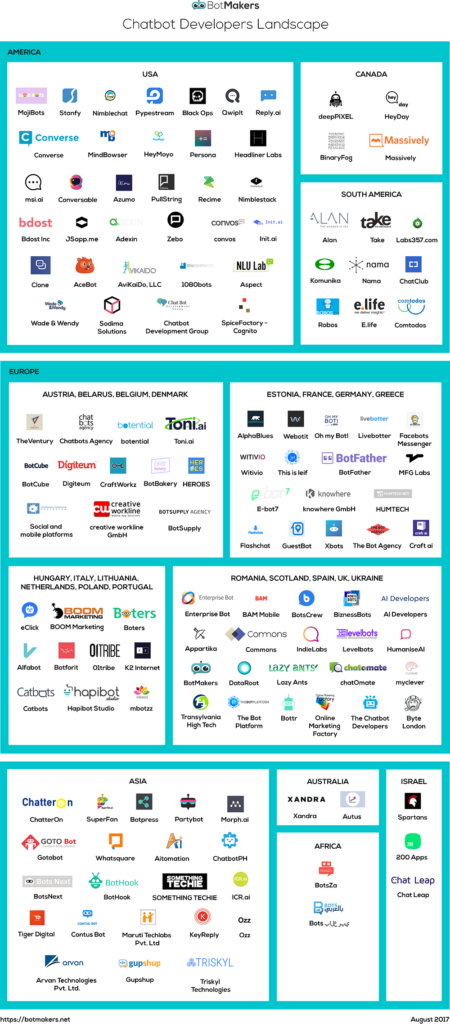
This is the Landscape we created in August 2017.
About author
Alexander Gamanyuk is the creator of a few chatbot projects, including Botmakers(chatbot template marketplace) and Tarta.ai (assistant that helps people find jobs by sending Smart Job Alerts), ChatBottle (chatbot search engine), Airchat (bot building platform).
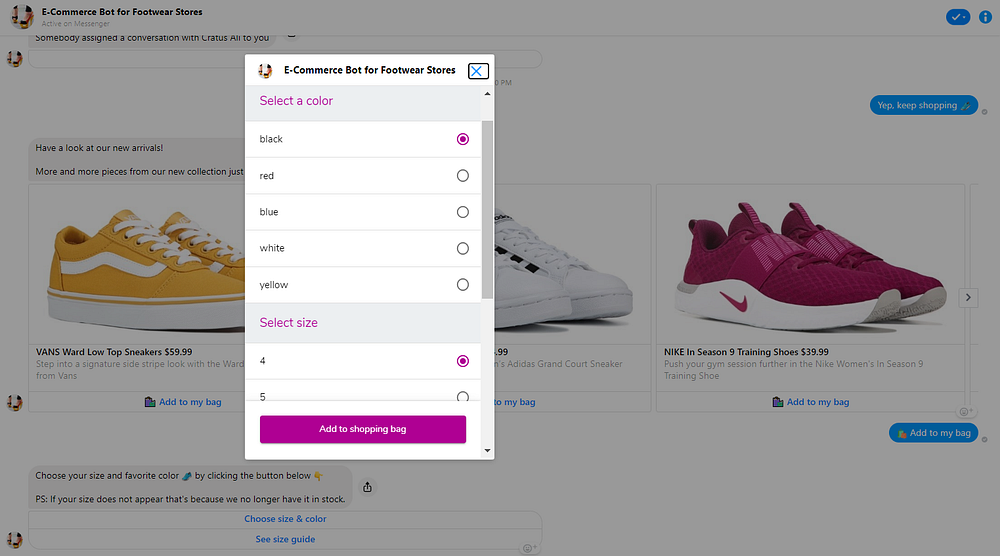
Now online store customers can discover products and seamlessly order and pay ahead for their orders using Facebook Messenger bots using a webview to list products, it’s easy-to-use and positively affect conversions.
The template was designed for footwear stores but, can be adapted for such e-commerce businesses, like clothing, beauty, accessory stores and similar, just by changing some copy and pictures.
Let’s set it all up!
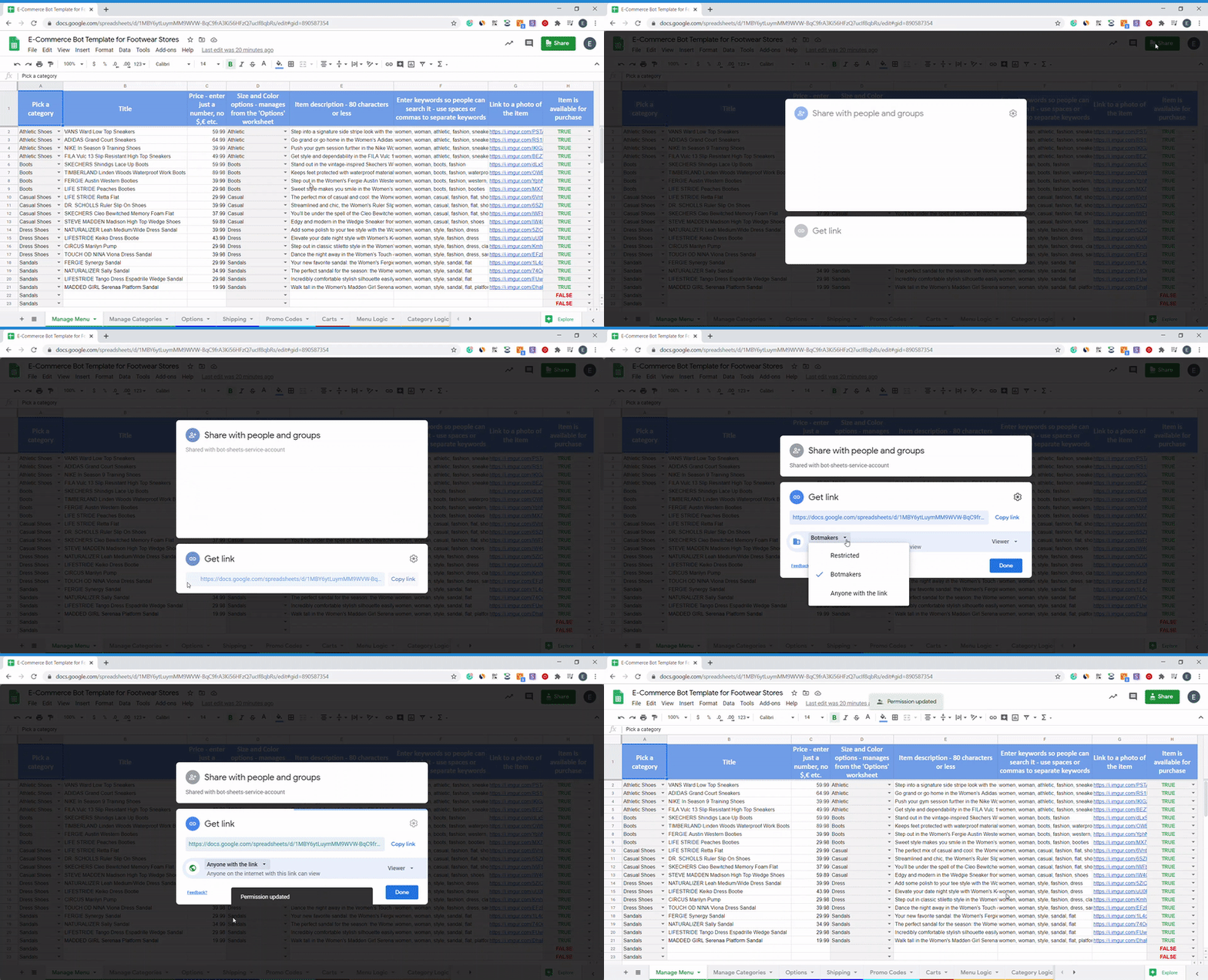
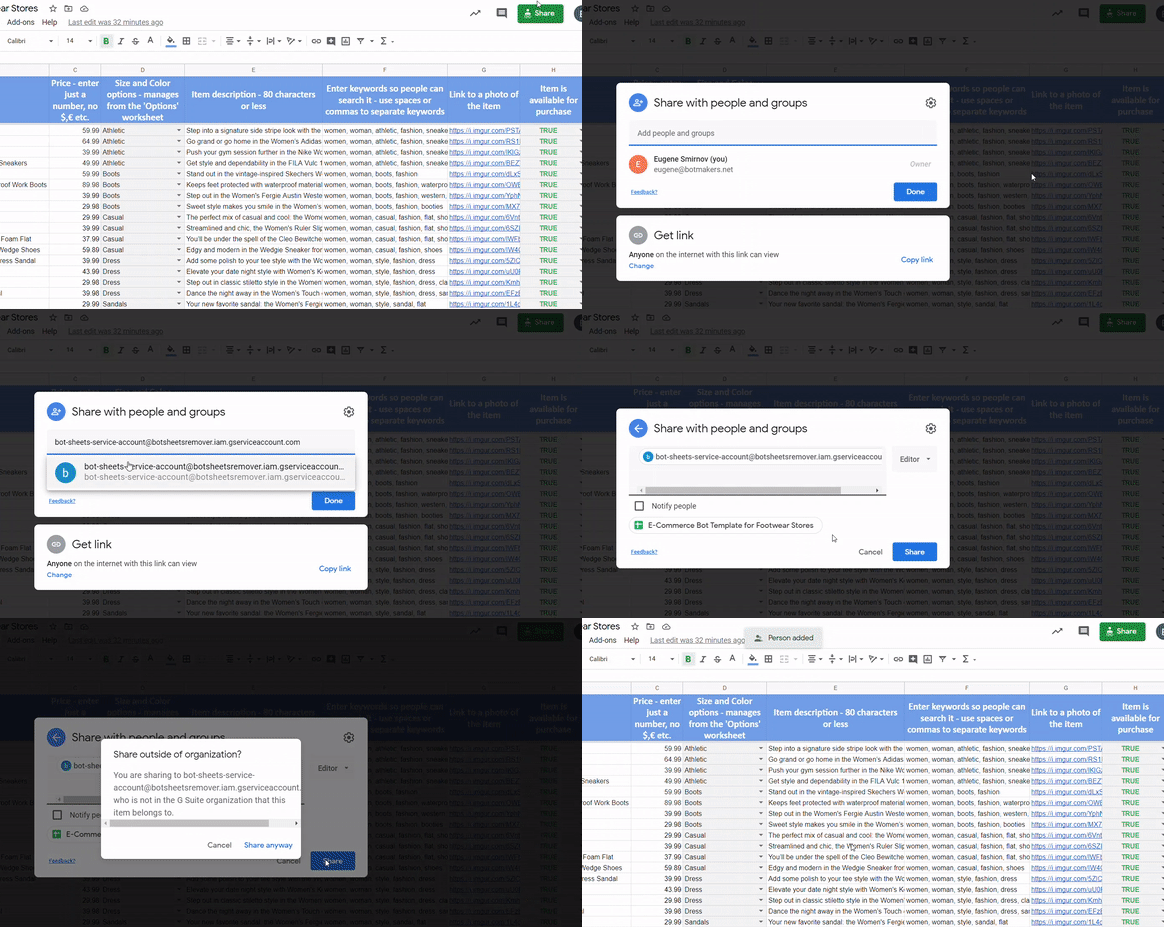
1. Make a copy of this Google Sheets template and click the Share button in the top right corner of your screen so that your copy can be accessed by your ManyChat bot.
2. Change the settings in Google Sheets so that ‘Anyone with the link can view’. Copy the shareable link and paste it somewhere for now so you can access it.
3. Then, where it gives you the option to share with people, add the following email address: bot-sheets-service-account@botsheetsremover.iam.gserviceaccount.com
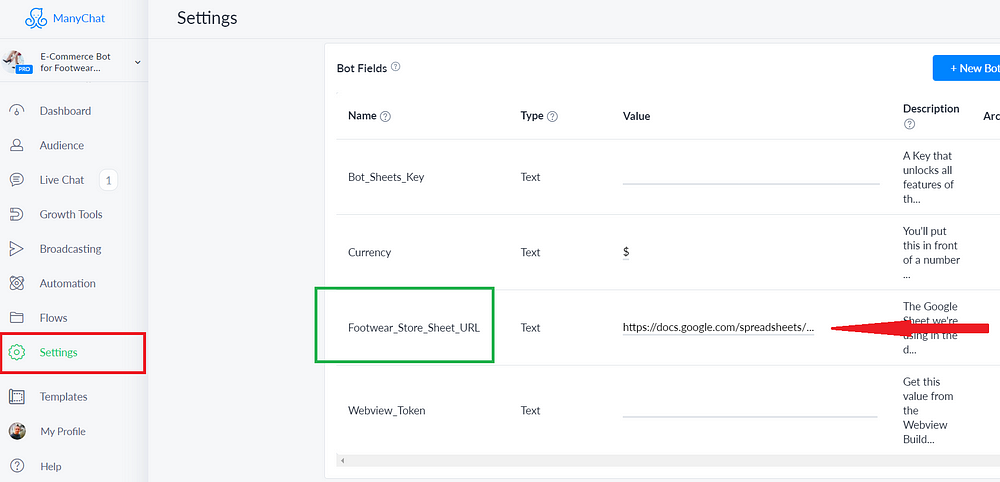
4. Go to the Settings/Custom Fields/Scroll down to the Bot Fields/Find Footwear_Store_Sheet_URL field and paste the shareable Google Sheets URL into the value field.
5. Grab your Botsheets Key and paste the key into the Bot_Sheets_Key field.
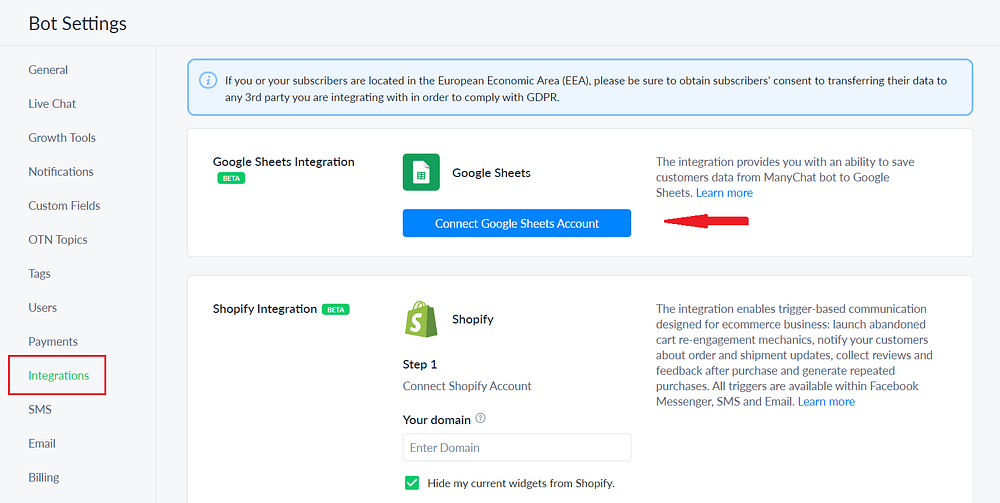
6. Set up Google Sheets integration by navigating to the ‘Integrations’ tab in your ManyChat Settings. Link to the Google account where you installed a copy of your Google Sheets.
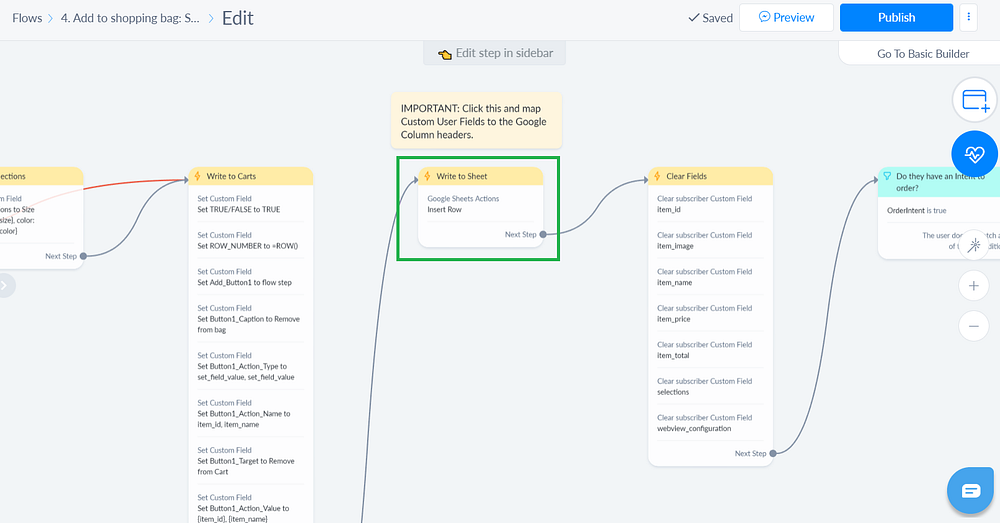
7. Go to the flow named ‘4. Add to shopping bag: Step 2’ and click ‘Edit’. Find an action ‘Write to Sheet’ and click the action to edit it.
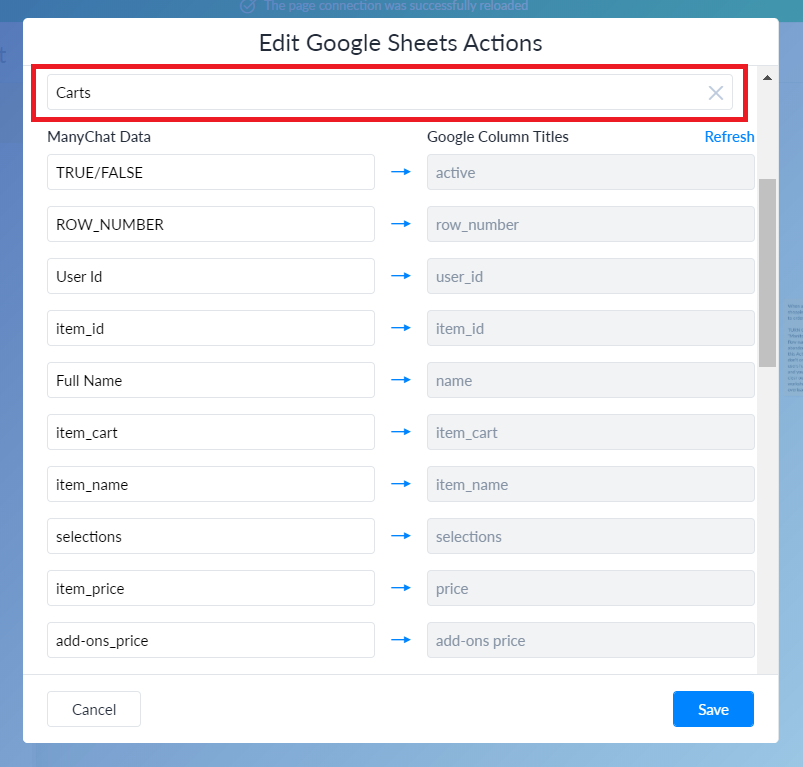
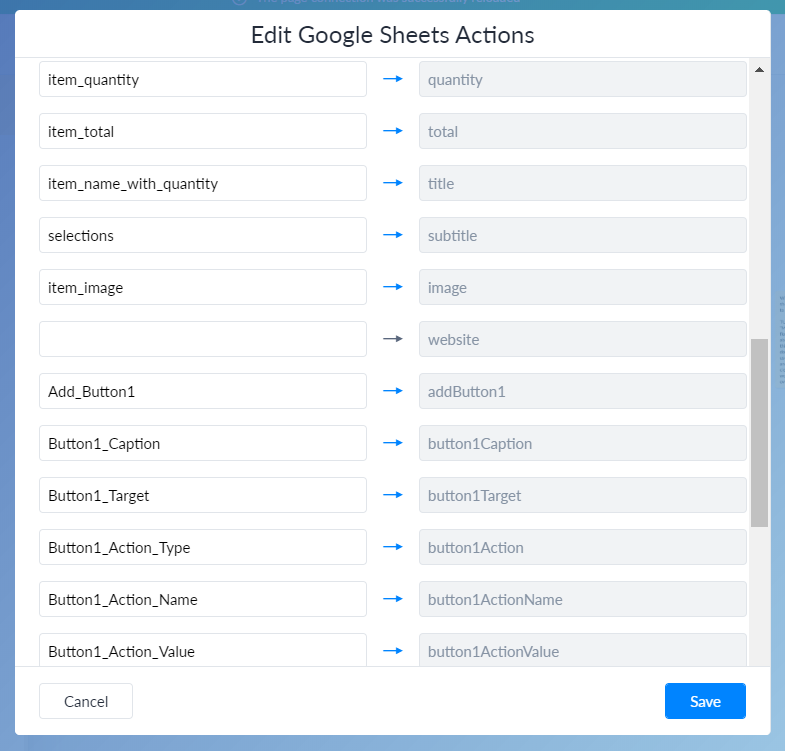
▪️ Choose your Spreadsheet and then choose the ‘Carts’ worksheet. Map Custom User Fields from Manychat to Google Sheets column headers.
Add ManyChat data you see here 👆 so they map to the Google column titles. Click ‘Save’ and then, publish the flow.
You will be using the following Worksheets to manage your products, shipping options and promo codes:
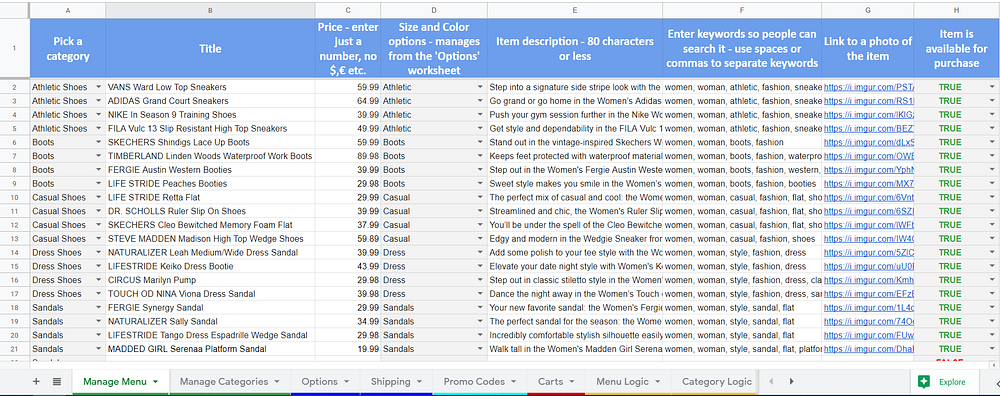
⚈ Manage Menu – this is a simple shop management interface. Add all items you’re selling here. Don’t change the order of the rows, just edit the rows and add data into new rows, or clear out data from rows you don’t need:
1️⃣ Pick a category
2️⃣ Enter an item title
3️⃣ Enter the cost, just a number
4️⃣ Add the option to choose size and color
5️⃣ Enter item description
6️⃣ Enter keywords so users can search it by keywords
7️⃣ Add a link to a picture
8️⃣ Make an item available or not in your ManyChat bot
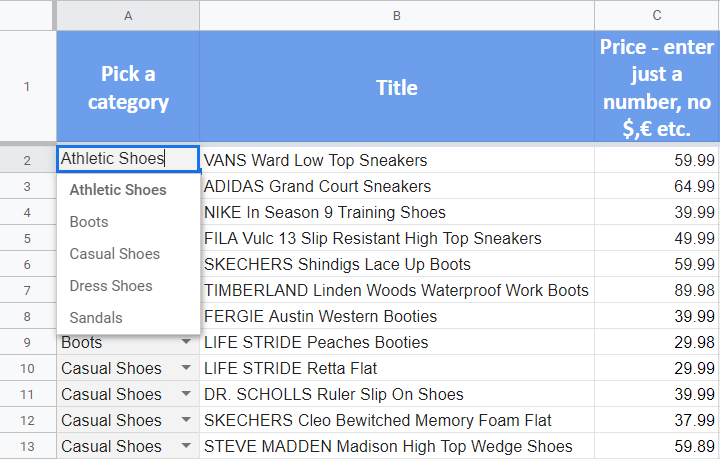
⚈ Manage Categories – a list of categories for items you’re selling. The list is accessed from the ‘Manage Menu’ worksheet. Don’t change the order of the rows, just edit the categories or add new ones. You can change the category title and image, make a category active or not.
If you changed the category title, don’t forget to add the appropriate title in the ‘Manage Menu’ Worksheet 👇
⚈ Options – this is to manage size and colors. If you add something to the “Price’ column, it’ll affect the base cost of the item. Options can be selected from a Webview if options are assigned to any item in the ‘Manage Menu’ worksheet. You’ll use the Botsheets to set up Webview options.
Step 1. Configure a Webview
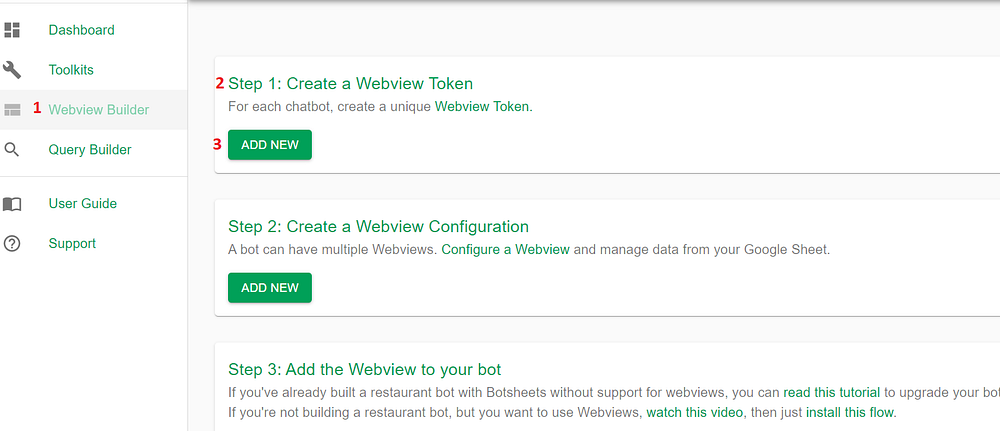
Log in with your Google account on https://app.botsheets.com. Go to: Webview Builder/Create a Webview Token/Add New
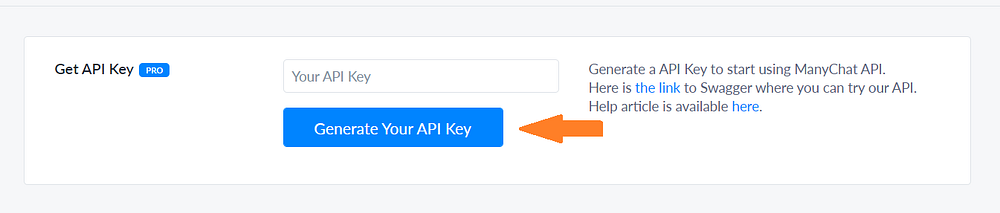
Generate and add your ManyChat API Key: ManyChat dashboard/Settings/API/Generate Your API Key
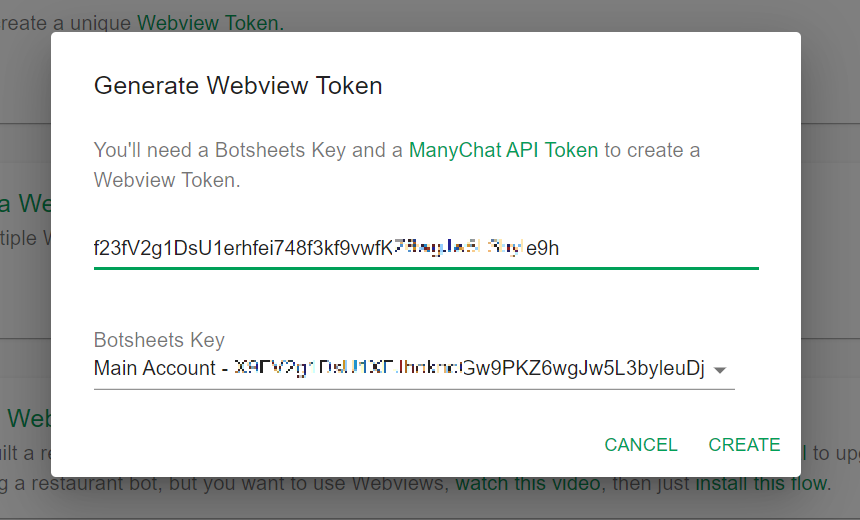
Paste your ManyChat Key, Botsheets Key, and click ‘Create’ in order to create a Webview:
Once your Webview token is generated, copy it and add in your ManyChat dashboard/Settings/Custom Fields/Bot Fields/Webview_Token
Step 2. Create a Webview
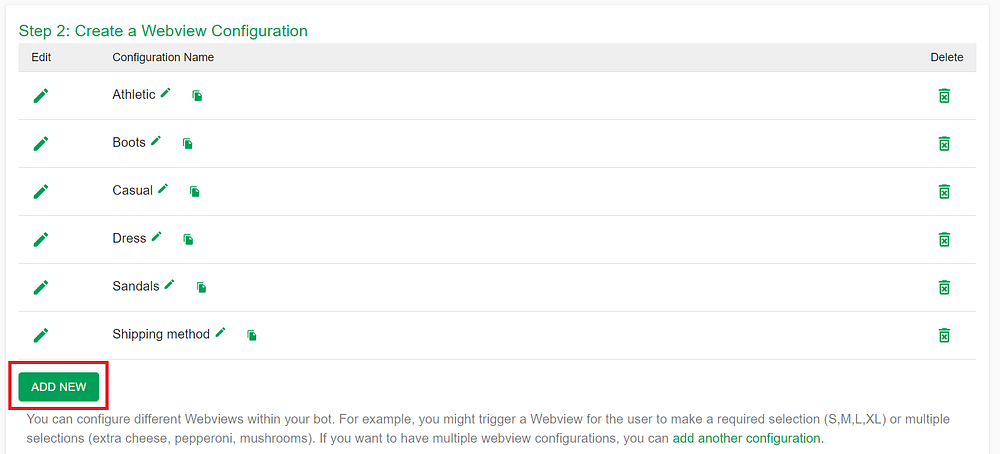
You can create different configurations for the same bot. For example, you might have a configuration for one type of shoes and a different configuration for different types of shoes.
Click ‘+’ to create a configuration or ‘Add New’ to add another one. ‘Configuration Name’ must be exactly like the name under ‘Webview Configuration’ in the ‘Option’ worksheet.
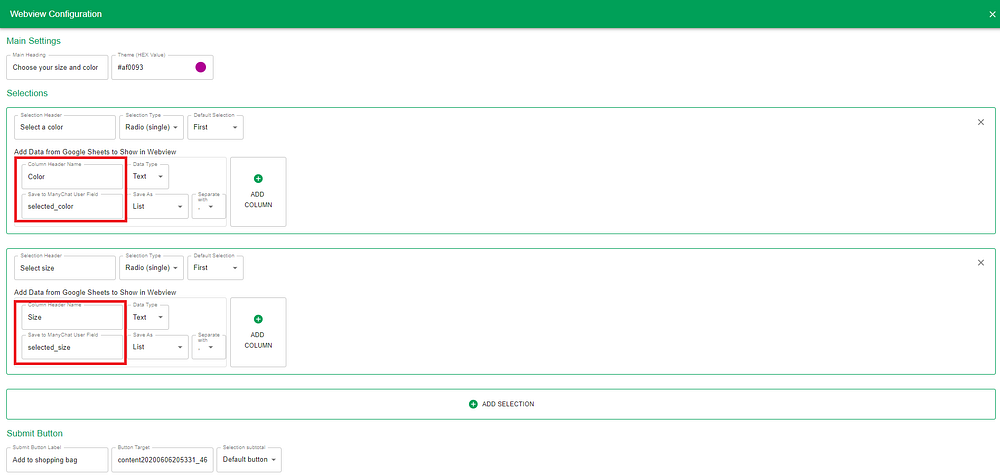
Choose ‘Start from Scratch’ and add appropriate data to the fields. Also, when users make selections, choose the appropriate custom fields to save that data.
‘Column Header Name’ must be exactly like the header in the ‘Option’ worksheet.
‘Save to ManyChat User Field’ must contain the exact custom field (i.e. selected_color or selected_size).
If you’ll want to change any header in the worksheet, change the ‘Column Header Name’.
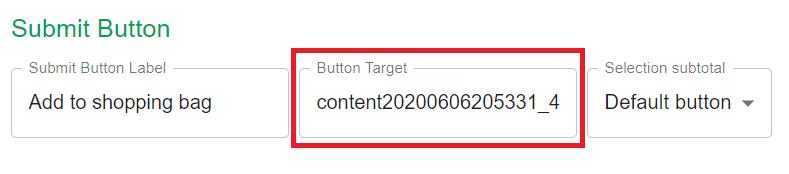
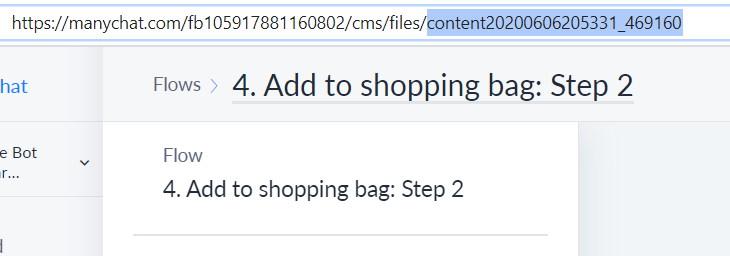
At the bottom of the configuration screen, you can see the ‘Submit Button’ options. Right after users pick a size and color, the bot asks for a quantity that leads to the ‘4. Add to shopping bag: Step 2’ flow.
Find that flow, copy that content and paste it to the ‘Button Target’ field.
Test it out!
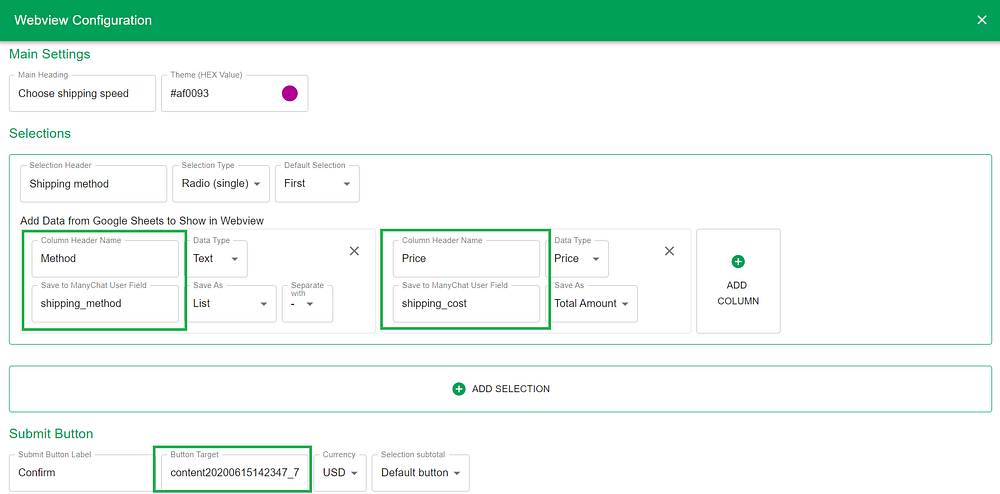
⚈ Shipping – These are shipping options that store value to Custom User Fields: Method: {{shipping_method}} Price: {{shipping_cost}}
You can change the shipping method to the list of countries you are shipping.
Complete the same procedure for shipping options like for size and color customizations (Step 2. Create a Webview).
⚈ Promo Codes – This worksheet manages discount codes for users. If the user tells the bot they have a promo code they will be prompted to enter the code, and if the code matches, the discount value will be saved and applied to the order. Values should be input as a decimal so it can be used for calculations. For example, if you have a code that provides 10% off, then enter 0.10
There are 3 other Worksheets in the template:
⚈ Carts – This stores the items that users add to their order (but have not yet ordered). Your bot will write the data to this worksheet. DO NOT enter data into this sheet manually. It’s dynamically populated by the chatbot and keeps track of everything users want to buy.
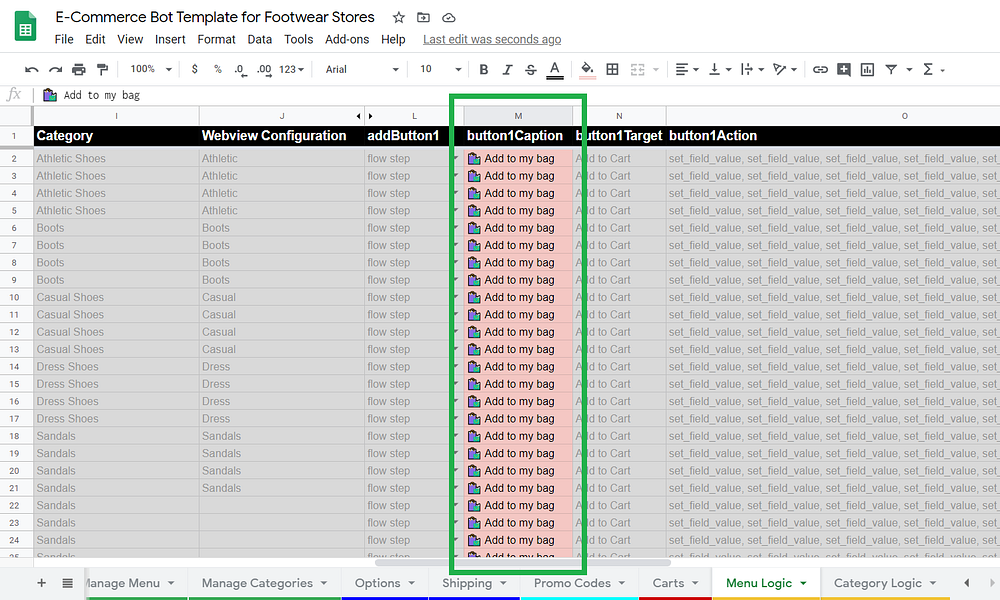
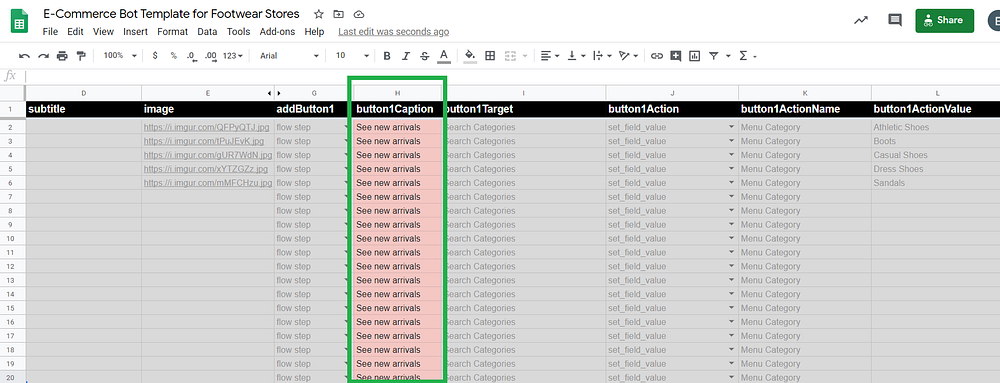
⚈ Menu Logic – This will generate a dynamic gallery using data in the Shop sheet and communicates with your Manychat flows. It’s really an advanced mode and most cells are greyed out meaning you shouldn’t edit them. It’s important that all rows have a product_id that matches what’s in the Manage Menu worksheet. The only column is red-colored can be customized in order to change the button name.
Category Logic ⚈ Similar to the Menu Logic worksheet, but specific to product categories. You don’t need to edit the worksheet as it contains logic. The only column is red-colored can be customized in order to change the button name.
❗ Please note, do not rename the worksheets. The names are required as Manychat flows make requests based on worksheet names.
Change currency if necessary 💵💶💷
The default currency is $ but you can switch the currency if necessary.
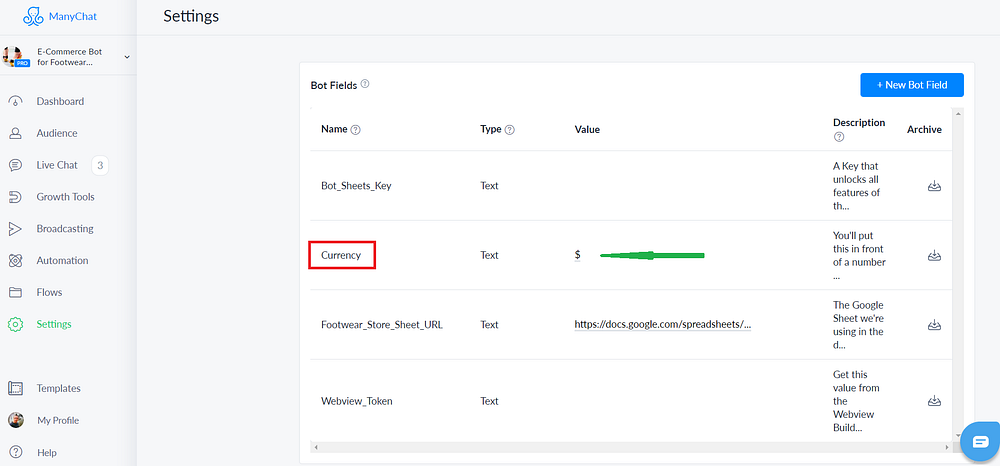
First, you will need to set up a Bot Field in your ManyChat settings for currency: Settings/Custom Fields/Bot Fields/Currency
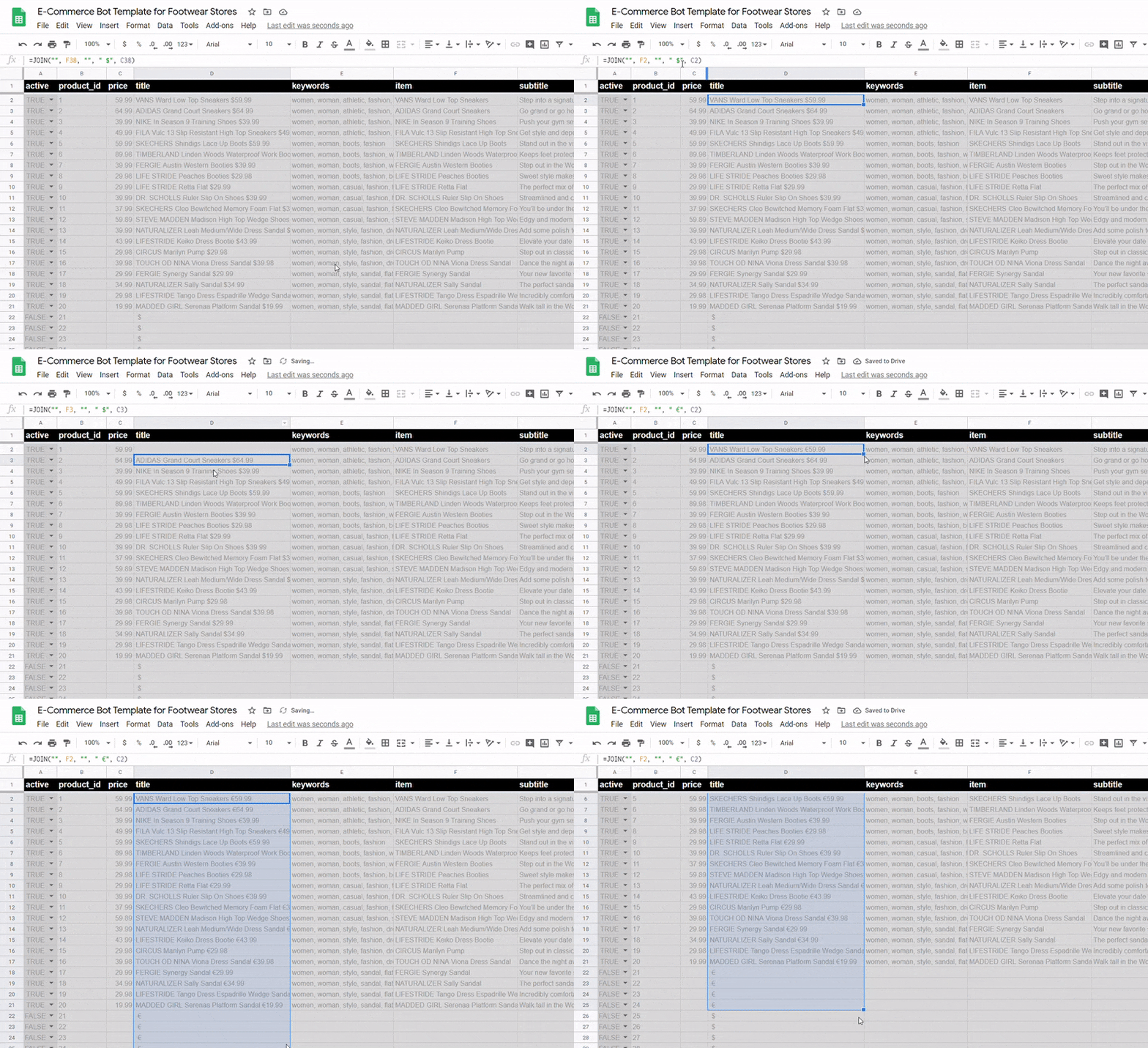
Second, go to the ‘Menu Logic’ worksheet and click the first cell in the title column, then edit the currency symbol in the Google Sheets formula bar. Grab the dot in the corner of the cell and drag that all the way down to the bottom of the sheet, so the formula is applied to every cell in the title column.
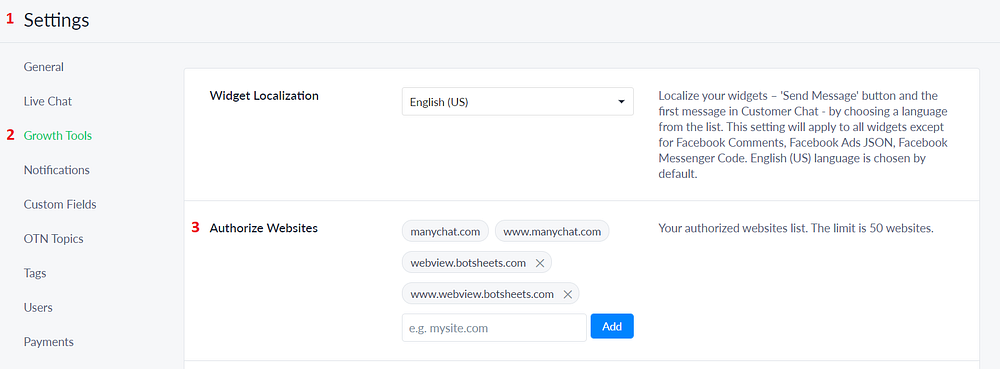
🏁 Finally, you’ll need to URL to Manychat settings to allow the Webview automatically close: ManyChat dashboard/Settings/Growth Tools/Authorize Websites/add webview.botsheets.com
All these efforts you’ll only need when setting it all up. Once it’s done, you’ll just manage all these in your Google Sheets template, so test it out right away!
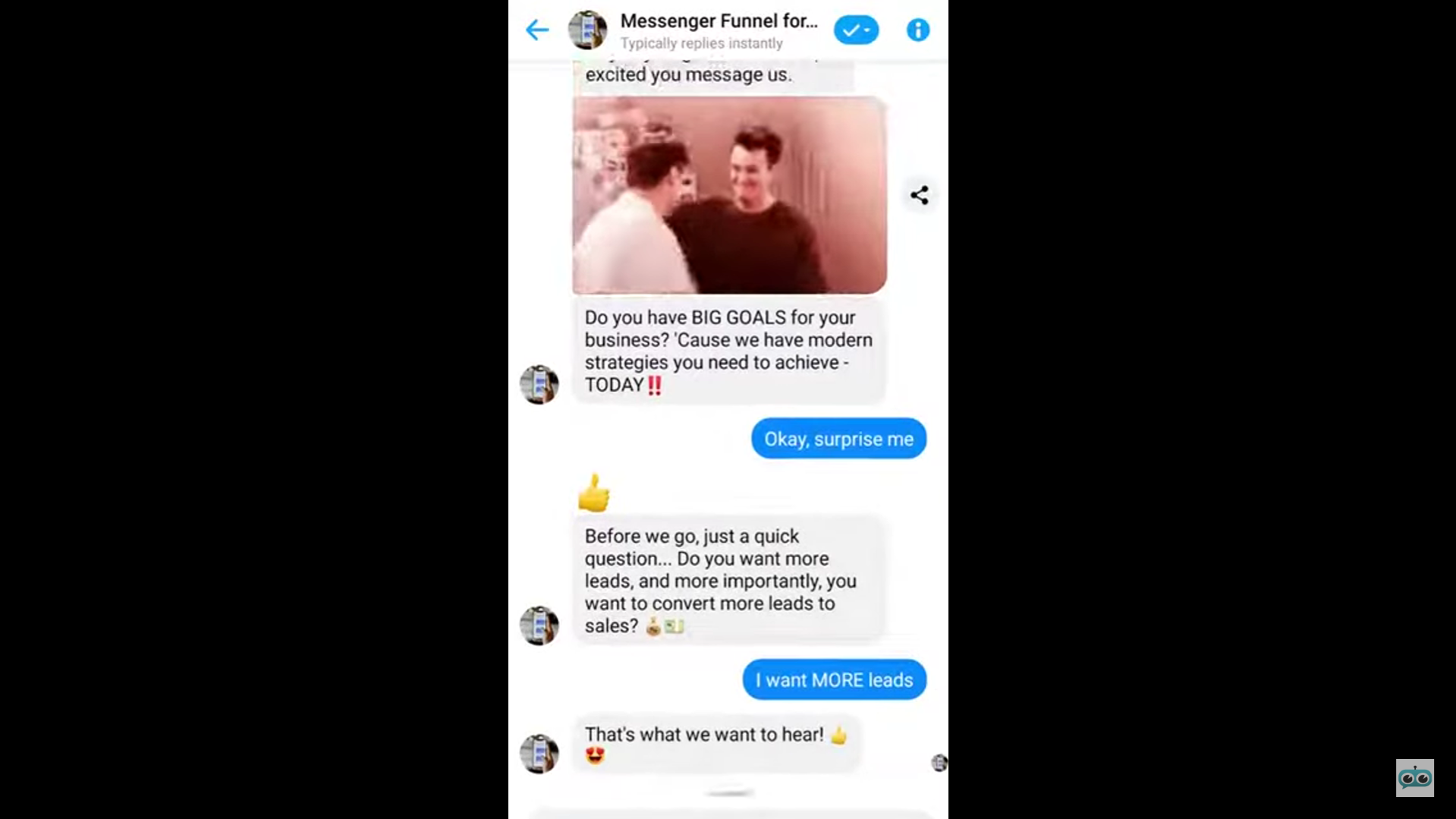
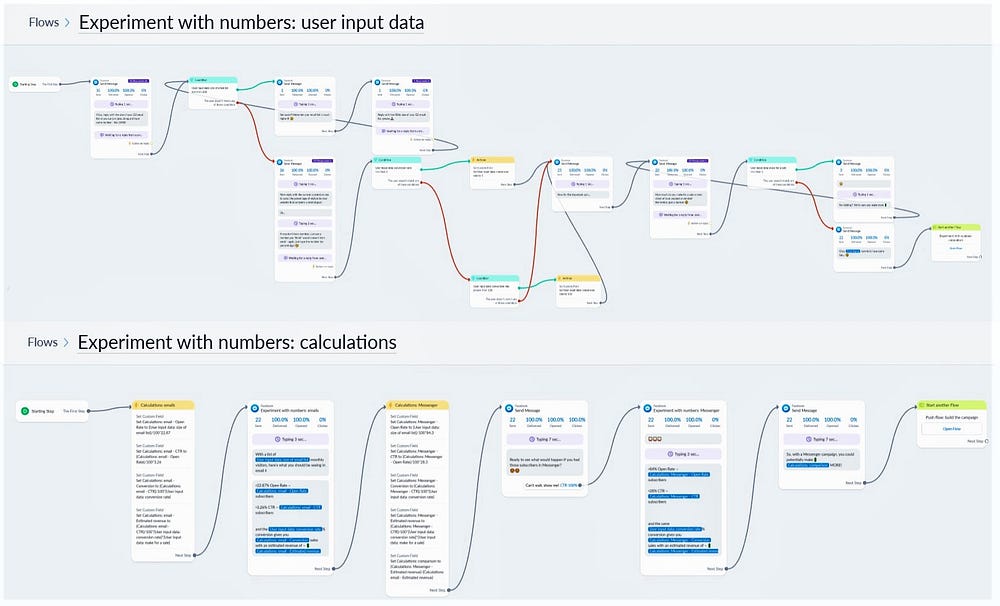
You probably know, we at botmakers.net have a template designed specifically for marketers and marketing agencies? The idea of this bot is to show its visitors the benefits of Messenger Marketing using an ROI calculator.
Thanks to ManyChat features, it can be done with no Zapier, no Javascript, no other integrations, all inside ManyChat.
Okay, we launched the first version of the template in early 2018 and marketers loved it!
Then, we received feedback from the customers who used the template and launched the updated version. Then was another update… and another. Whereas ManyChat had been launching new features, we’ve been keeping up with updates and added those features that could make the template even more efficient. 😊 We even captured one of the updates 👇
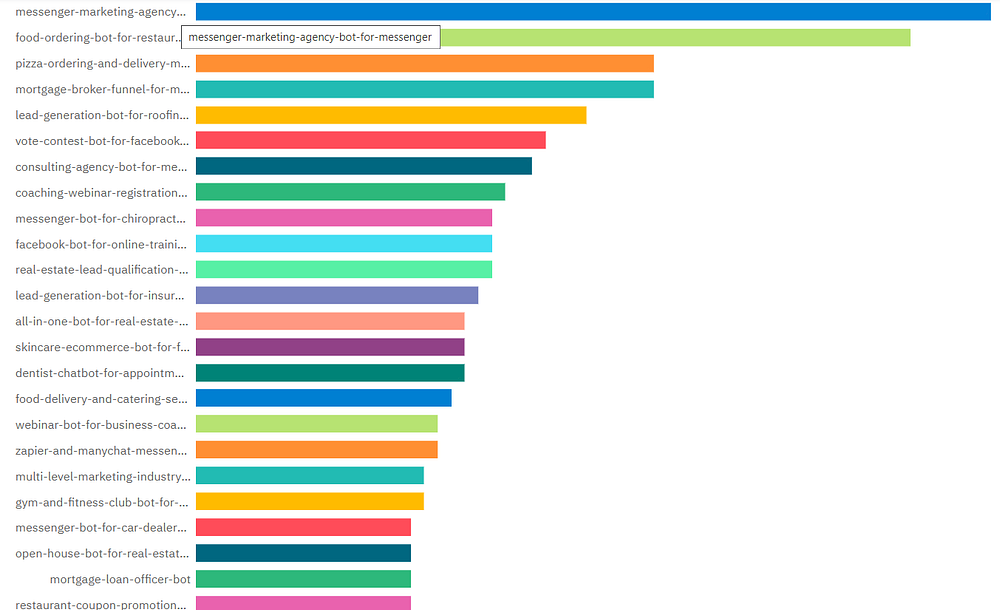
So, during that period it’s been updated several times and in the middle of 2020, the template is still the most popular and most unlocked template 📊 on Botmakers.
Well, today we are adding a quite similar (but not the same) template designed for app development agencies.
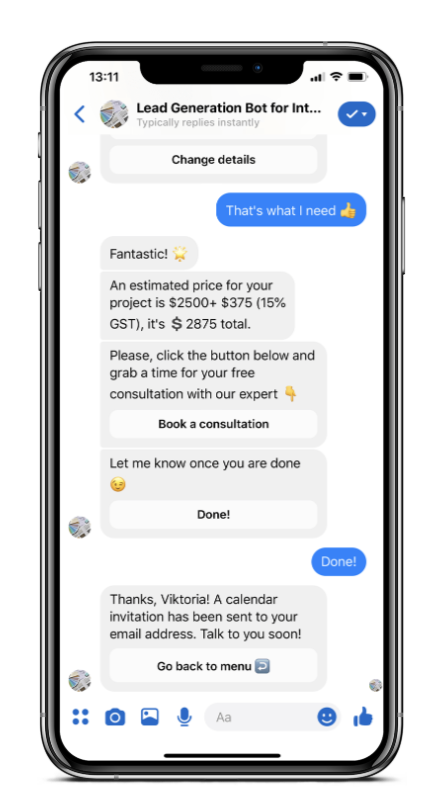
With the built-in calculator, the template gives the possibility to estimate app cost if were to develop an app with a typical outside agency. It walks visitors through a short survey and, based on inputs, gives a timeframe and cost estimate needed to build an app – the calculations are based on average agency cost of app development and can be customized if necessary.
Restaurants are closing but the ones that switch to takeout and delivery won’t go out of business. Having a Messenger bot will be a real game-changer for restaurants, bars, pizzerias or grocery stores in today’s circumstances.
But sometimes, managing bot content is not as easy as it looks, especially if content changes frequently, e.g. restaurant or pizzeria menu. And adding, removing or changing menu items every day, manually, can be time-consuming. Using a ManyChat bot with Botsheets will make content management much easier.
Let’s do it with the pizza ordering and delivery bot template and set it all up in your ManyChat. The template dynamically generates items using data and pictures added/changed in Google Sheets.
Step 1.
Get this Google Sheets template and make a copy so you can edit it for personal purposes. This 👇 short videocast may help.
Step 2.
Paste the link of your Google Sheets template into your ManyChat bot.
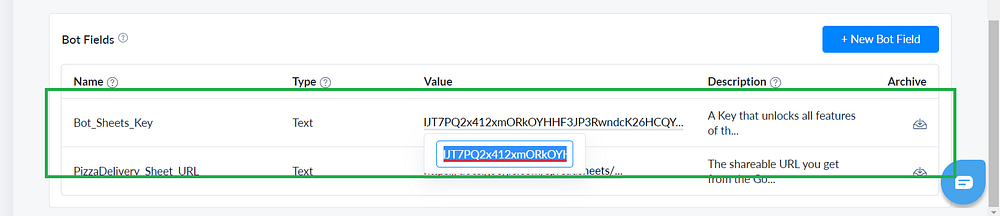
Get a Botsheets key and paste it into the Bot_Sheets_Key field. You’ll need to generate your free key using Botsheets Facebook Messenger chatbot.
Step 4.
Set up the native Google Sheets integration and connect your account.
Now is the time to check out the connection between ManyChat and Google Sheets template.
Step 5.
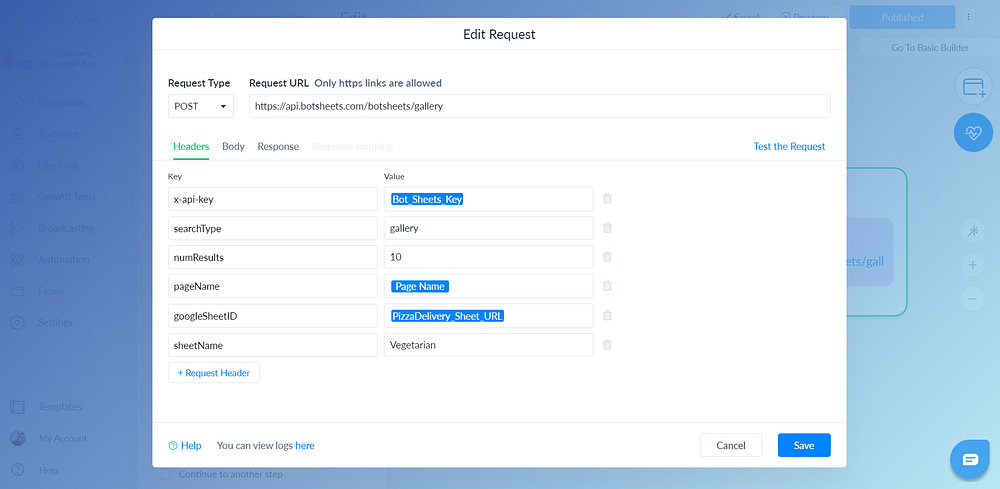
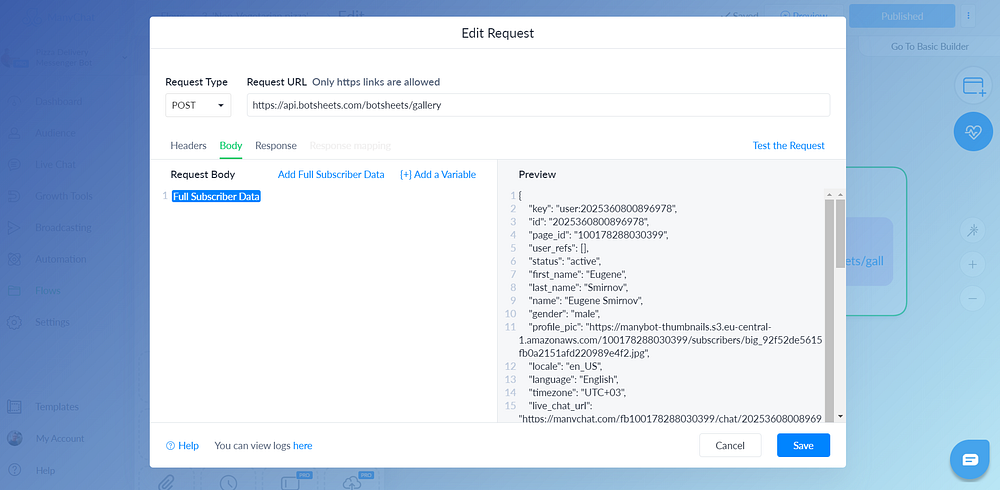
Find the flow under the number 3 – ‘Vegetarian pizza’ flow and click ‘Edit’ at one of them. In the dynamic content block, you’ll need to have values as on screenshots below ⤵️
and add Full Subscriber Data in the ‘Body’ tab.
When it is done you can test your request by clicking on ‘Test the request’ button. If everything is done correctly you will get a response like that 👇👇
Step 6.
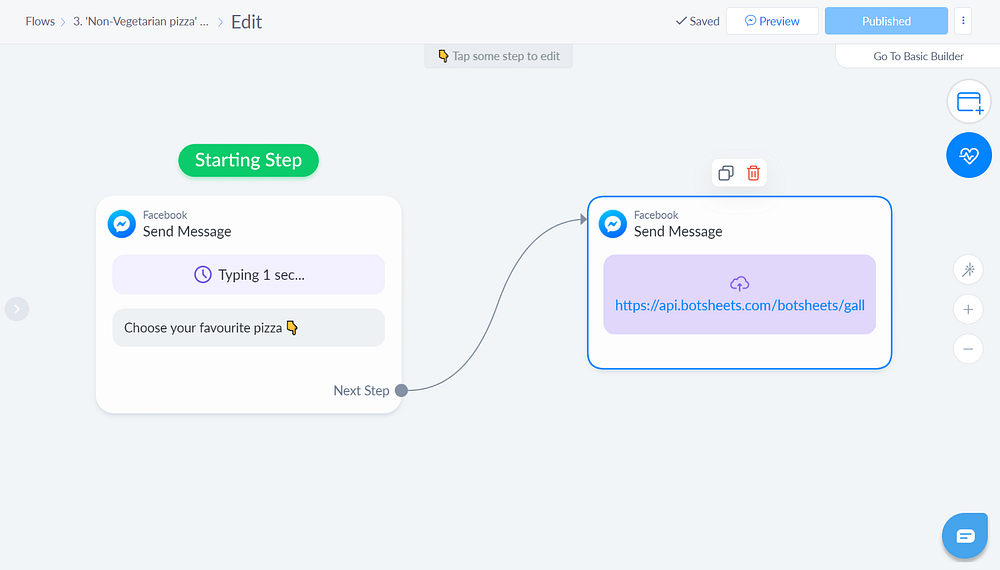
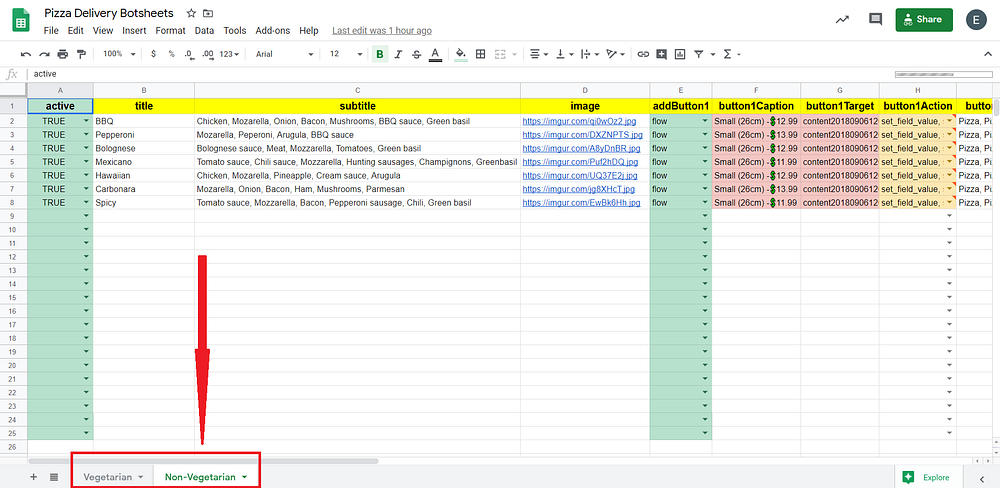
Repeat Step 5 with the ‘Non-Vegetarian pizza’ flow:
Step 7. Almost Done!
Now the only thing is left 🚀 – customize your Google Sheets template and adapt menu items for your pizzeria, bar, restaurant…
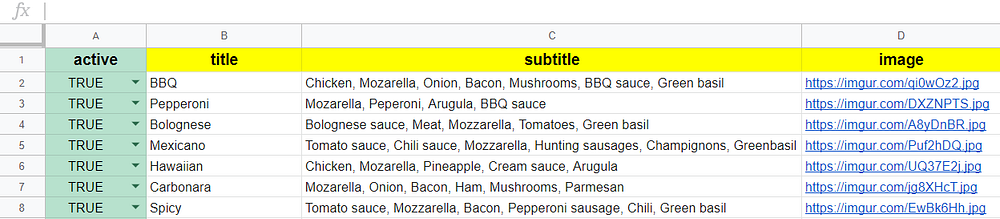
Column ‘active’ is responsible to make a current item active or not active
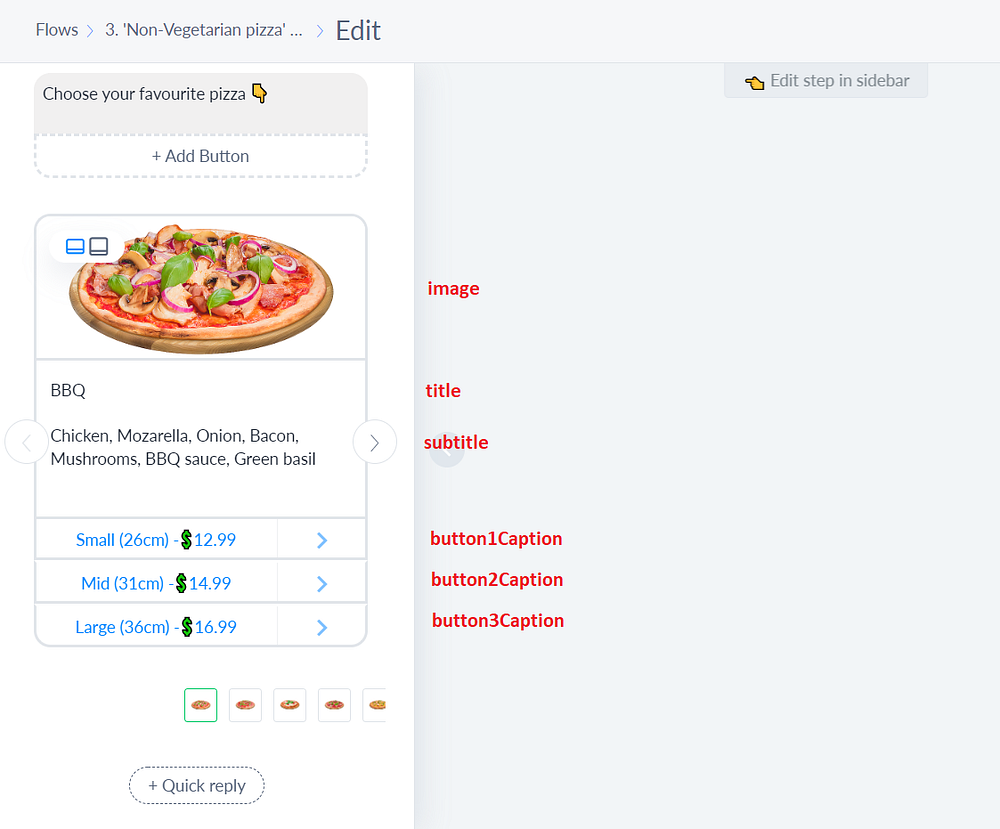
Column ‘title’ is an item of your menu in a ManyChat gallery
Column ‘subtitle’ is an item description
Column ‘image’ is a picture of an appropriate item
Columns ‘addButton1’, ‘addButton2’, ‘addButton3’ connect 3 buttons to each card of the gallery
Columns ‘button1Target’, ‘button2Target’, ‘button3Target’ link to a specific ManyChat flow. You can get a flow ID in your Manychat dashboard by navigating to the specific flow and then viewing the URL.
Here is an example:
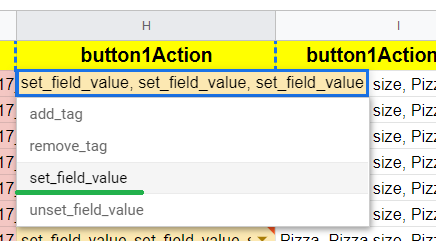
Columns ‘button1Action’, ‘button2Action’, ‘button3Action’ set up custom field values. Choose ‘set_field_value’ and add it twice, separated by commas. These will save values for ‘button1ActionName’, ‘button2ActionName’, ‘button3ActionName’ custom fields.
Columns ‘button1ActionName’, ‘button2ActionName’, ‘button3ActionName’ set the values for custom fields Pizza, Pizza price, Pizza size when clicking on the appropriate button in the gallery.
Columns ‘button1ActionValue’, ‘button2ActionValue’, ‘button3ActionValue’ are the actual values for these custom fields.
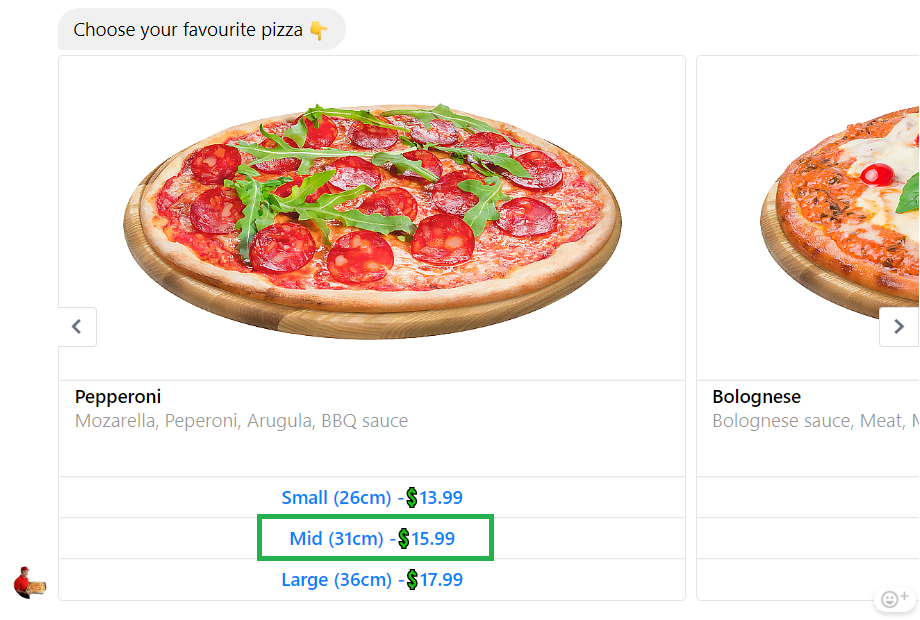
💡 Example: When clicking on Pepperoni mid-size pizza for $15.99, the ‘button2ActionValue’ –Pepperoni, mid-size, 15.99 will set up values for Pizza, Pizza size, Pizza price custom fields for the ‘button2ActionName’ column and send data back to the ManyChat.
Also, you can get more information on how Botsheets works here.
❗ Please note, if you rename sheets, you will need to add an appropriate title to the ‘sheetName’ key.
All these customizations you will only need to check once, after installing and connecting the template. 🔄 Then you just activate or deactivate items available on today’s menu and change the price if necessary.
The information is updated on your ManyChat bot real-time!
The launch of a business isn’t a minute thing, especially when it comes to the necessity to grow and expand quickly. Our devoted client, Robyn Towning, knows that challenge firsthand.
However, just in a few months, her newly founded company, Social Energy, skyrocketed and took a worthy place among the leading social media services providers. How did she manage to make that kind of progress?
Stay here. It’s a truly inspiring story of smart decisions, hard work, commitment and support, which gave Robyn’s business a powerful push for growth and promotion.
Introduction
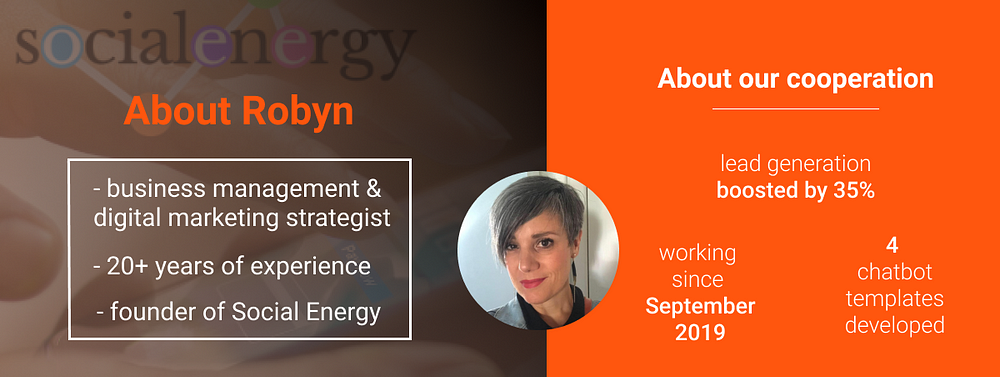
Robyn Towning is a digital marketing expert currently based in Taranaki, New Zealand, after 15 years of living in the UK. Her experience in strategic marketing and business development amazes —she dedicated over 20 years to the diligent and productive work in this creative sphere.
During such a vast period, Robyn has been taking a position of General Manager, Marketing Strategist, and Independent Consultant at several enterprises, one of which is Arbonne, a global manufacturer of the healthy products, based on botanical principles. Despite having impressive expertise in business management and consulting, one thing plays a paramount role in Robyn’s career:
“My special interest and skills have always been around social media. I have trained many businesses on content strategy for social media, and regularly study emerging trends in social media.”
This was the reason and incentive to make a significant change in her professional life. A few months ago, Robyn decided to jump all in and launch the own social media agency, specializing in Messenger Marketing.
Following the latest trends and discoveries, she expected to witness enormous growth in Messenger Marketing, and her vision was to deliver exponential growth for the early adopters of this exciting promotional opportunity.
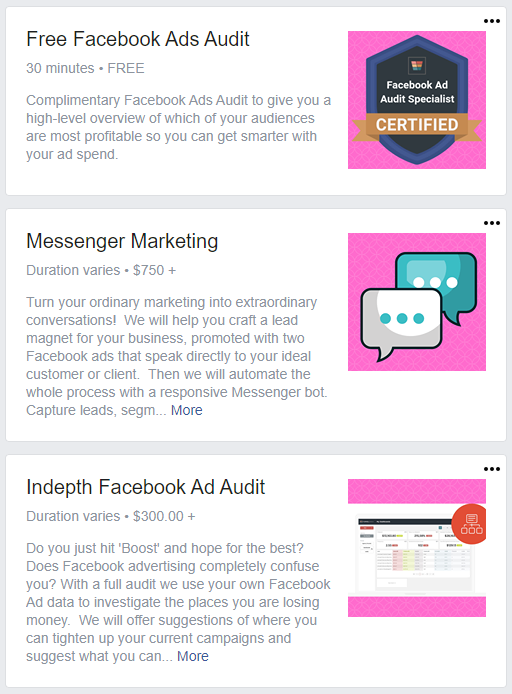
Now, being a creative and strategic thinker, Robyn creates a compelling and omnipresent social media presence for clients within Social Energy. The range of the provided services includes the development of chatbots and driving traffic to them through Facebook Ads, and the production of social media content, emails, strategies, and lead magnets.
Who could even imagine that the newly arisen agency started receiving so many requests right off the bat?
Faced Challenges
The majority of the incoming requests were for creating chatbots. Building her own company meant that Robyn should work full time to solve all business management and clients’ issues. However, the delivery time was limited. Thus, Robyn needed to urgently find a competent bot development assistant who could take on some of the tasks.
“Outsourcing some of the builds to the Botmakers’ team meant I could create a lot of chatbots quickly for clients’ businesses.“
Such a smart task management decision allowed Robyn not only to complete the requested projects on time but also to complement her portfolio with various ready-made bot templates. Using them as case studies, she started prospecting the cold market, thereby attracting new customers.
Solutions
As it was mentioned above, Robyn benefited from the Botmakers’ templates in two ways:
1) Firstly, she has relied on our ready templates to build more complicated flows within the already created chatbots. She introduced such complex features as quizzes, loyalty cards, ordering calculations, and quotes. This has shortened the time taken to develop the more sophisticated chatbots.
2) Secondly, she has used the templates presented on the Botmakers website to share demo preview links to prospective customers.
“What I have found is that business owners don’t understand chatbots well if you just explain how they work. If you can get them to go through a demo, they get it immediately and get excited about how it will work in their own business.”
This approach enabled Robyn to grow her business faster, learn quicker, and get more clients.
The Greatest Impacts
Robyn achieved truly high results with her chatbot development services, but some of them deserve special attention. The two most successful projects were caterer and carpenter tailor-made bots, which helped end clients to automate essential and time-consuming aspects of their businesses.
For the caterer, we automated her weekly meal delivery service and catering requests and included payments via Paypal. Another challenge was to synchronize numerous channels of getting orders — Instagram, Facebook Page, Facebook profile, website, and email. We’ve been able to streamline all of that, so all inquiries are directed into the bot now.
For the carpenter, we created quite a complicated quote calculator that is simple for a prospective customer to use. This has enabled the client to qualify leads before an appointment is made.
Both customers are ecstatic about how much time the implemented bots save them!
Summary
Robyn’s success story shows us that the most reasonable decision that a smart leader can take is reducing the workload by delegating executive tasks to external specialists. It’s the right way to deliver the clients’ projects on schedule while having enough time to concentrate on business development strategy.
The new year is around the corner, and our Airchat team can’t leave you without a gift. We know you’ve been waiting for it — the possibility to add condition flows which make user interaction with your chatbot more variable and personalized. And you’re good to go with this superb feature right now!
Condition Flows for Boosted Personalization
If earlier you’ve sent all of your users to the common blocks, today, you can easily set required conditions that separate and redirect them according to their attributes or location.
The system checks whether a person matches the specified parameters (e.g., gender, country, the performance of a target action, type of business, etc.) and moves him/her to the appropriate flow. In case no condition is matched, another block is applied.
How to Use Condition Flows Efficiently
Condition flows allow you to segment the audience into several groups and present them with different proposals, messages, CTAs.
For example, by setting the condition with the attribute ‘user status is equal to lead,’ you ensure that your current leads won’t see the lead generation form when interacting with the bot.
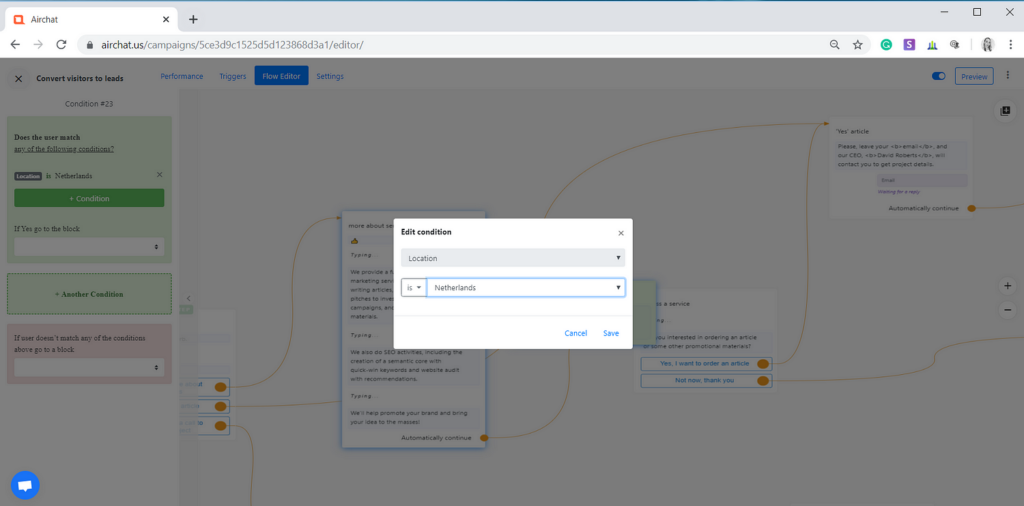
Another case is specifying the concrete locations that you want to cover or, vice versa, avoid. Let’s say the Netherlands is your target country. If you set a condition ‘Netherlands,’ the bot will check whether a user is (or isn’t) from there and apply the block with a conversion form explicitly designed for this area.
With this condition, you can also impose restrictions on some locations that you don’t want to deal with. When the bot detects that the user is out of your location focus, it will start the appropriate, most likely ‘farewell’ flow.
Transforming User Engagement with Advanced Condition Flows
Condition flows revolutionize how your chatbot interacts with users, creating dynamic conversations that feel natural and personalized. By implementing strategic condition flows, you can achieve remarkable improvements in user engagement and conversion rates.
Dynamic Response Patterns
Create sophisticated conversation branches that adapt based on user behavior:
Previous purchase history triggers personalized product recommendations
Chat duration influences the depth of information provided
Time zone differences automatically adjust message timing and content
User interaction frequency determines follow-up message intensity
Enhanced User Experience
Transform standard chatbot interactions into meaningful conversations:
Welcome returning customers with their preferred products or services
Adjust language complexity based on user expertise level
Offer region-specific promotions and deals
Customize support options based on subscription tier
Engagement Optimization
Leverage condition flows to maximize user interaction:
Create urgency with time-sensitive offers for specific user segments
Deploy personalized re-engagement sequences for inactive users
Tailor product demonstrations to industry-specific use cases
Generate custom feedback loops based on user satisfaction levels
Business Intelligence
Harness condition flows to gather valuable insights:
Track user preference patterns across different segments
Identify high-performing conversation paths
Monitor conversion rates for specific user attributes
Analyze engagement patterns across different geographic regions
Implementing these advanced condition flows creates a sophisticated chatbot experience that keeps users engaged while delivering measurable business results.
Implementation of the Condition Flow, Step-by-Step
Everything is much easier than you might think.
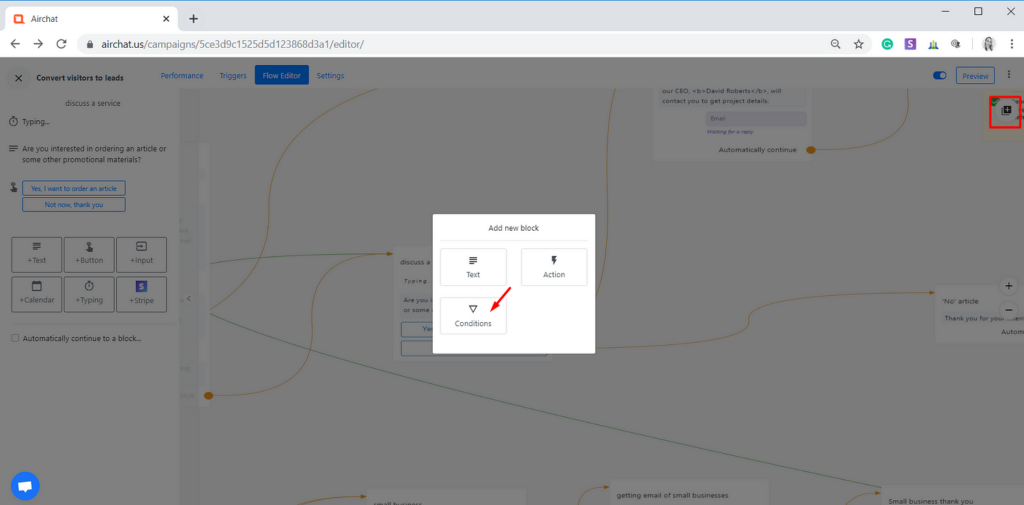
Step 1. First off, go to your admin panel and define the block where you need to make a segmented redirect from. Click on the ‘+’ button in the top right corner and choose ‘Conditions.’
Step 1. Opening ‘Conditions’ menu
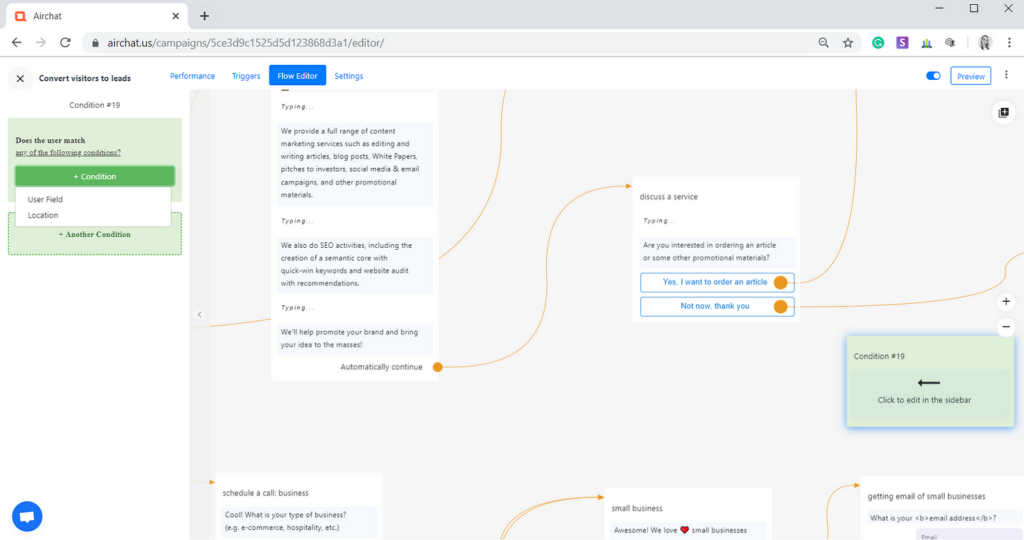
Step 2. You have two formats of the conditions available: ‘User Field’ and ‘Location.’ Thus, you can set a parameter based on your existing user fields or geography. Select the required option.
Step 2. Choosing the format of a condition
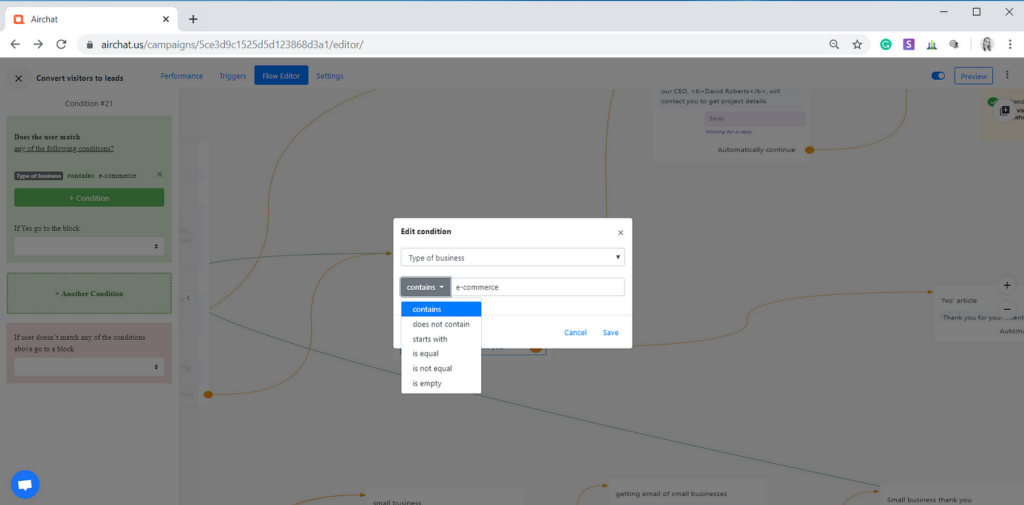
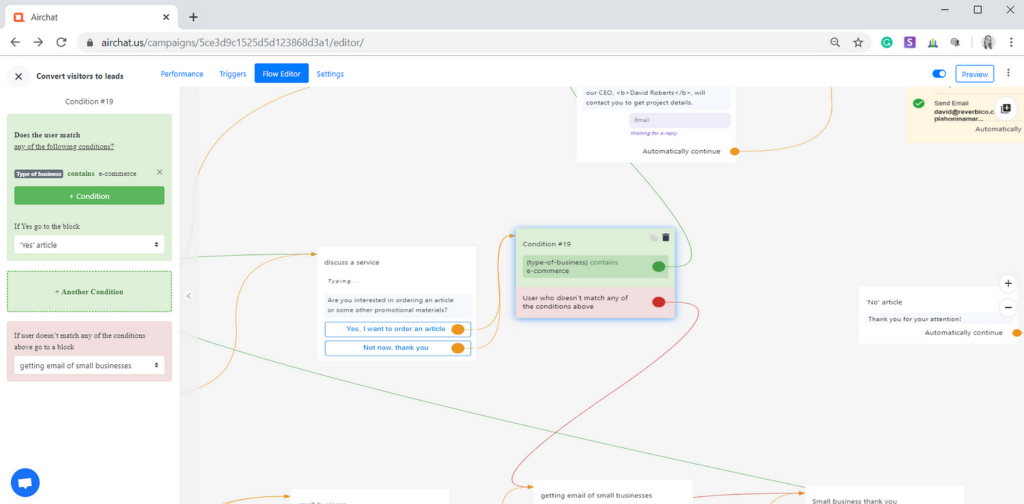
Step 3. Think about the attribute and input, which will serve as a conditional factor. For instance, you need to separate e-commerce businesses from other industries to show them another promotional message. For this, set a condition ‘Type of business’ — ‘contains’ — ‘E-commerce.’
You can add more than one condition to segment users as precise as possible, by clicking on ‘+Another condition.’
Step 3. Setting the conditional factor(s)
Step 4. Choose the blocks that users will be redirected to in case of a match or mismatch. Let’s continue with an example of e-commerce businesses. The bot will check whether a person is saved in your user fields base under ‘e-commerce’ and move him/her to the specified block. Otherwise, another block will appear.
Step 4. Choosing the redirecting blocks
The same algorithm works in case of setting a condition by location, but instead of the ‘User field,’ you should select ‘Location.’
Setting condition by location
As you can see, dealing with conditions is as simple as adding a new text block while the areas of their application are genuinely unlimited.
Stay tuned with our further advancements onAirchat.us!
Good news to the real estate agents — at Botmakers , we produced a panacea to your biggest job headaches:
The Real Estate Agent’s Daily Struggle
Picture this: It’s 9 AM on a Tuesday. Your phone hasn’t stopped buzzing since you woke up. Three potential buyers want property details “ASAP.” You’re frantically preparing for an open house while simultaneously trying to respond to emails that piled up overnight. The seller of your newest listing keeps texting about showing feedback, and you haven’t even had your coffee yet.
Sound familiar?
For most real estate agents, this chaotic scenario isn’t the exception—it’s the daily norm. The modern real estate professional juggles countless responsibilities:
Racing between properties with barely enough time to prepare compelling presentations
Answering the same questions about square footage, school districts, and property taxes dozens of times a day
Manually following up with every lead, often losing potential clients who expected faster responses
Spending evenings inputting contact information from open house sign-in sheets instead of with family
Creating engaging property showcases that stand out in an increasingly competitive market
In today’s fast-paced real estate environment, time is quite literally money. Every minute spent on repetitive administrative tasks is a minute not spent closing deals. Meanwhile, today’s buyers expect immediate responses and seamless experiences—expectations that are increasingly difficult to meet using traditional methods.
What if there was a way to reclaim those lost hours while simultaneously elevating your client experience?
manual processing of numerous typical requests from the potential clients;
difficulties in creating an impressive open house presentation;
time-consuming introduction of your properties;
the lack of interactive tools to retain a buyer’s attention and boost engagement with your proposals.
How Open House Bot Transforms Real Estate Challenges into Opportunities
Let’s examine exactly how the Open House Bot’s key features directly address the daily struggles of real estate professionals:
Quick Lead Generation Funnel. The 3-step conversion flow captures visitor information while they’re actively interested. Instead of manually collecting details at open houses and inputting them later, the bot automatically builds your database. Agents report saving 5-7 hours weekly on data entry alone.
Efficient Follow-up System. No more missed opportunities due to delayed responses. The bot’s automated follow-up messages ensure potential buyers receive timely engagement, maintaining interest without requiring your constant attention. Clients receive information instantly, while you focus on high-value interactions.
Comprehensive Property Presentation. Eliminate repetitive question-answering by providing on-demand property information. When a potential buyer asks about square footage or school districts at 10 PM, the bot delivers accurate information immediately. This 24/7 availability has shown to increase qualified leads by up to 40%.
Agent Bio Integration. Build trust automatically through a professional digital presence. The bio section works silently in the background, establishing your credibility while you focus on relationship-building. Agents using this feature report a 30% increase in client confidence during initial meetings.
Zero-Cost Implementation. Unlike expensive CRM systems requiring ongoing subscription fees, the Open House Bot leverages your existing ManyChat platform with no additional integration costs. This represents significant savings while delivering enterprise-level automation capabilities.
Customization Flexibility. Adapt the bot to match your unique branding and property portfolio without technical expertise. Agents can update property details, change messaging tone, or adjust follow-up sequences in minutes rather than hiring developers for custom solutions.
By implementing these automated solutions, agents consistently reclaim 15-20 hours weekly—time better spent on relationship-building and closing transactions. The seamless digital experience also meets modern buyers’ expectations for immediate information access, giving bot-equipped agents a competitive edge in today’s market.
By incorporating this vivid chatbot into your workflow, you’ll see the sky-rocket expansion of your pipeline and an increase in the conversion rate. All these business goals can be easily achieved due to the well-thought-out conversation flows and simple & clear user interface.
Try it on your own right now! All you need is to select an appropriate platform in your Botmakers.com dashboard and connect the bot to the account.
Strategic Implementation: Maximizing Your Open House Bot for Marketing Success
The Open House Bot isn’t just a tool—it’s a strategic asset that can revolutionize your entire marketing approach. Here’s how to leverage it for maximum impact:
Integrate with Social Media Campaigns
Create QR codes linking directly to your bot for inclusion in Instagram stories and Facebook posts
Develop teaser videos showcasing bot interactions to build interest before open houses
Use the bot’s conversation starters as engaging social media poll questions to warm up your audience
Leverage Data Analytics for Market Insights
Review common questions asked through the bot to identify buyer priorities in your market
Track engagement patterns to determine optimal timing for property launches
Analyze which property features generate the most inquiries to refine your listing descriptions
Implement Multi-Channel Marketing Strategies
Coordinate email campaigns with bot-delivered content for consistent messaging
Create targeted advertisements highlighting the convenience of 24/7 property information
Develop text-message campaigns directing prospects to bot-powered virtual tours
Personalize Follow-Up Based on Interaction Data
Segment leads based on their specific interests revealed through bot conversations
Customize your in-person pitch using insights from digital interactions
Use the bot to promote neighborhood events relevant to potential buyers
Create neighborhood guides delivered through the bot to position yourself as a local expert
Develop seasonal content that keeps prospects engaged with your bot year-round
By strategically implementing these approaches, you’ll transform the Open House Bot from a simple automation tool into the cornerstone of a sophisticated, data-driven marketing ecosystem that continuously generates and nurtures qualified leads.
How Our Open House Bot Stands Out in the Marketplace
When evaluating real estate automation tools, it’s important to understand what makes each solution unique. Here’s how our Open House Bot compares to other popular options:
Advanced Customization vs. Generic Templates
While most chatbot platforms offer basic real estate templates, our Open House Bot provides industry-specific customization far beyond the competition. Unlike standard ManyChat templates that require significant modification, our bot comes pre-configured with real estate terminology, property-specific question flows, and neighborhood information frameworks that agents can populate in minutes rather than hours.
Seamless Multi-Platform Integration
Unlike competitors that limit functionality across platforms, our Open House Bot maintains consistent performance whether deployed through ManyChat, MobileMonkey, or ChatFuel. This platform-agnostic approach allows agents to leverage existing accounts without sacrificing capabilities, while competing solutions often require premium subscriptions to access comparable features.
Specialized Real Estate Analytics
The Open House Bot includes real estate-specific analytics that general chatbot platforms simply don’t offer. Beyond basic engagement metrics, our solution tracks property interest patterns, neighborhood preference trends, and price range sensitivity—insights that translate directly into improved listing strategies and higher close rates.
Client-Centric Conversation Design
While standard chatbots follow rigid conversation paths, our Open House Bot employs dynamic conversation mapping specifically designed for property inquiries. This approach allows potential buyers to navigate naturally between property features, location details, and financing options without frustrating dead-ends that plague generic solutions.
Property Showcase Capabilities
Most competitor chatbots limit media sharing to basic images. Our Open House Bot supports interactive virtual tours, neighborhood heat maps, and comparable property slideshows—creating an immersive experience that conventional chatbots can’t match, all without requiring users to leave the conversation.
By choosing our specialized Open House Bot over general-purpose alternatives, real estate professionals gain access to purpose-built functionality that addresses the unique challenges of property marketing and client engagement in today’s competitive market.
Success Stories: Real Estate Professionals Share Their Open House Bot Experience
“After 15 years in real estate, I was skeptical about adding another tech tool to my arsenal. But the Open House Bot has been transformative. I’ve reclaimed my Sundays—instead of frantically collecting contact information, I can focus on meaningful conversations with serious buyers while the bot handles data collection. My lead conversion has increased by 32% in just three months.” — Maria Sanchez, Luxury Home Specialist
“The personalized follow-up capability alone has been worth its weight in gold. Last month, a couple attended my open house, engaged with the bot, and received automated information about the property’s recent renovations at 11 PM that same night. They were so impressed with the immediate response that they scheduled a second viewing the next day and made an offer shortly after. The bot quite literally helped me close a $780,000 sale while I was sleeping.” — James Wilson, Residential Real Estate Agent
“As a new agent trying to build my business, the Open House Bot has leveled the playing field. I’m competing against teams with multiple assistants, but with the bot handling my initial client interactions and information distribution, my one-person operation appears just as responsive and professional. My broker was so impressed with my lead generation numbers that she’s now recommending the system to everyone in our office.” — Taylor Rodriguez, First-Year Agent
“The customization options have allowed me to create distinct personalities for different property types. My luxury condo bot has a sophisticated tone, while my suburban family home bot feels warm and approachable. Clients frequently comment on how the experience feels tailored specifically to them.” — David Chang, Urban Property Specialist
“I was wasting nearly 10 hours weekly on data entry and basic follow-ups. Since implementing the Open House Bot, I’ve redirected that time to hosting two additional broker events per month. The result? My listing inventory has increased by 40% this quarter.” — Samantha Lee, Team Leader
No matter what type of business you have, a follow-up email is a great way to establish communication and improve your business.
This tutorial shows how to send emails to your subscribers right inside your ManyChat bot in 5 steps. No Zapier, no Integromat, no any other integrations required. Let’s have a more detailed look at it…
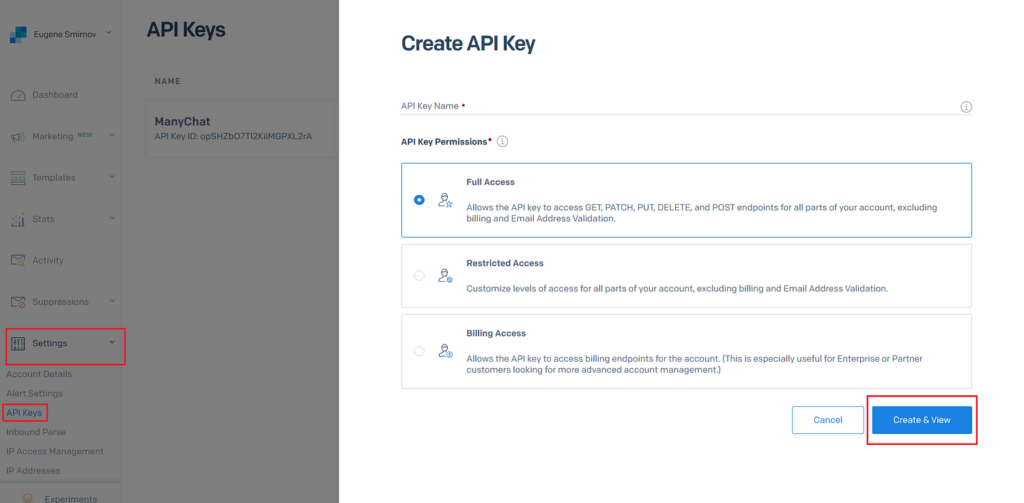
1. Create API Key in your SendGrid account
To create an API Key in your SendGrid account, go to ‘Settings’, choose ‘API Keys’ from the dropdown list and click ‘Create API Key’. Enter your Key name, choose ‘Full Access’ for Key permissions and click ‘Create & View’. Note: do not copy the key at this moment, we’ll do it a bit later.
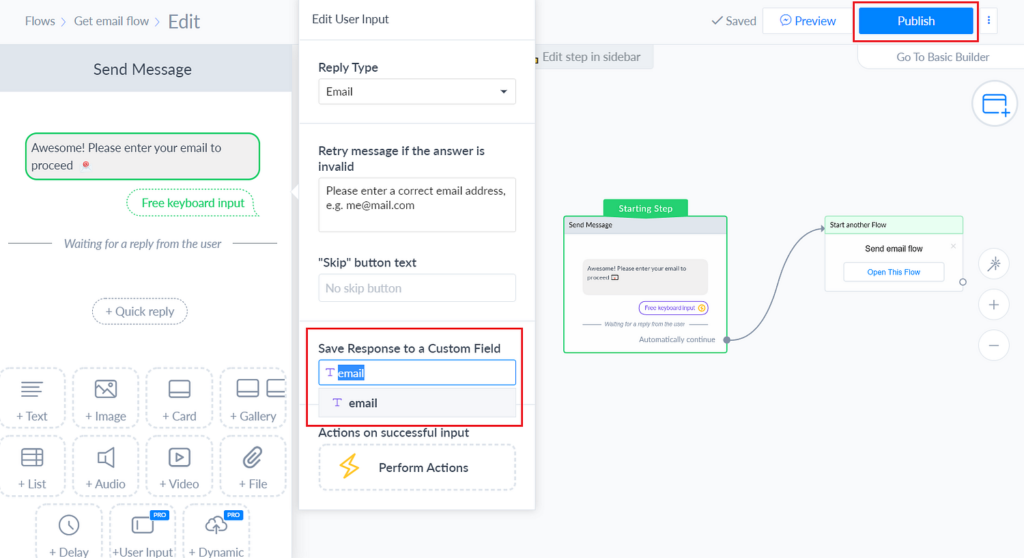
In order to send emails from your ManyChat bot, you’ll need to collect them first. Add the flow that will ask users to leave an email and save it in a ManyChat custom field.
Once the flow is set up and published, don’t forget to start a conversation with your bot and enter at least one email in the ‘Get email flow’. It’s necessary to store some data in the ‘email’ ManyChat custom field.
3. Setting Up SendGrid API in ManyChat
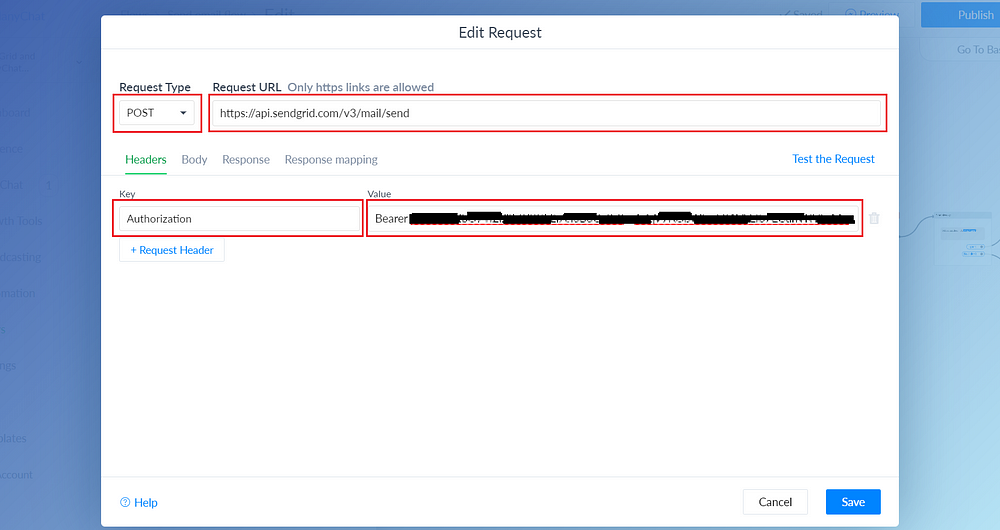
To create an external request node you need to go to ‘Actions’ and choose ‘External Request’ (Pro ManyChat requires). Once you click on ‘Add your request’ button it will open the configuration window. In the configuration window you will need to add Request Type, Request URL, Key and Value in the Headers exactly how it looks at the screenshot below:
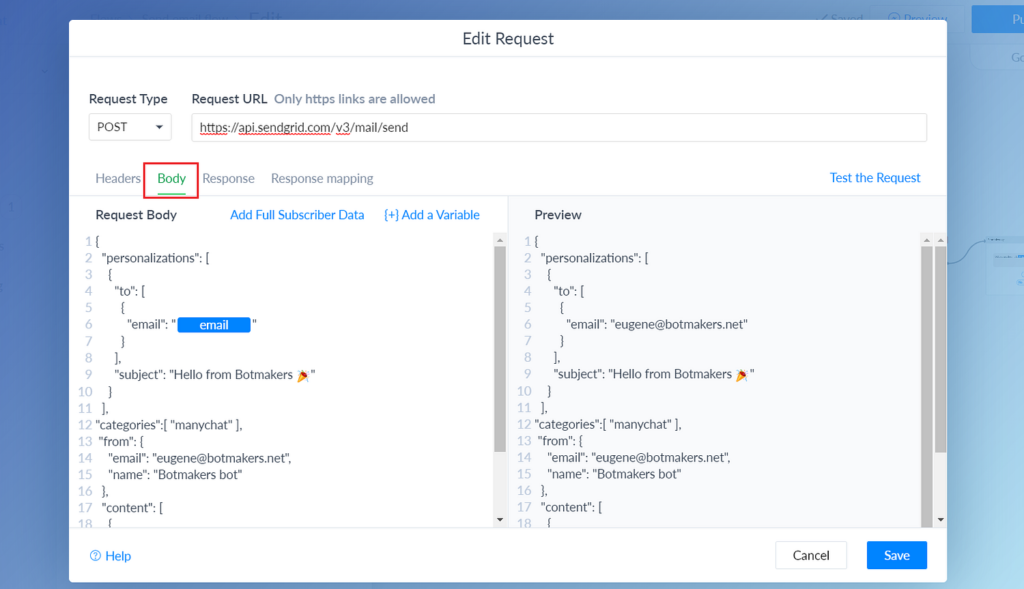
Note: you will need to manually add {{email}} custom field you created in your ManyChat earlier, and add your own data to “subject”, “email”, “name” and “value” fields.
5. Finally! Testing the Request
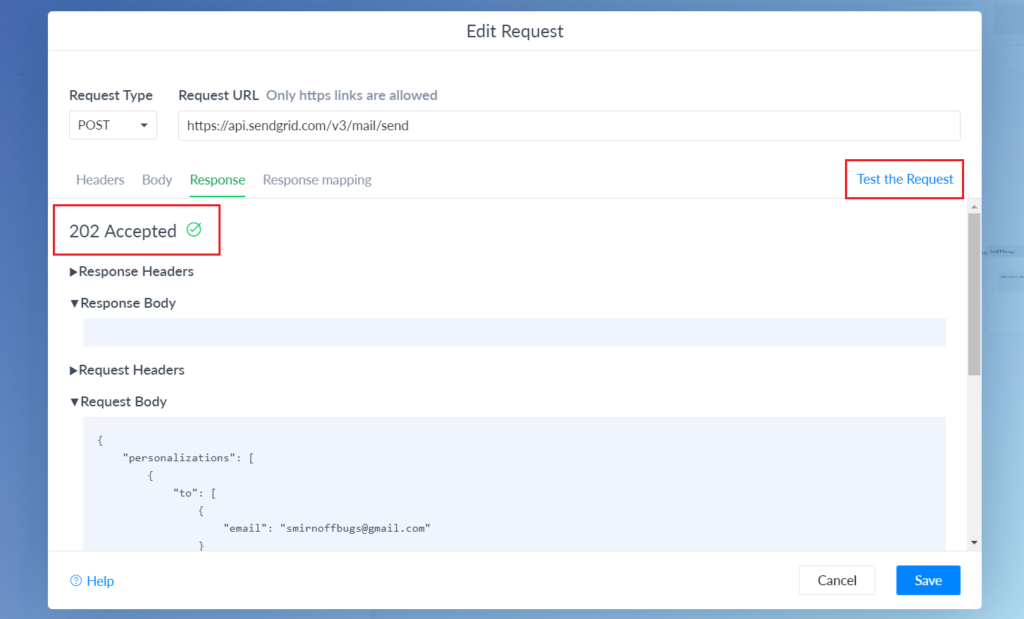
When it is done you can test your request by going to ‘Response’ tab and click on ‘Test the request’. If everything is done correctly you will get 202 code like that 👇
Combining bots and email is extremely powerful. We’re using the technology currently at Botmakers and now you can send emails to your bot subscribers effectively and with high open-rates as well.
More and more businesses these days interesting in building chatbots. Using BotMakers data, we can see the variety of industries, where chatbots can be used, and the list is not ended with well-known E-commerce, Insurance, Healthcare, Sport, Retail and Hospitality.
There are plenty of companies (from small- to big-sized), who consider having their own chatbot. And it’s extremely important for all of them to find an experienced and reliable partner to make the final decision of starting the chatbot project.
We want to share 135 of the most promising bot development agencies, some of them are botmakers.net partners.
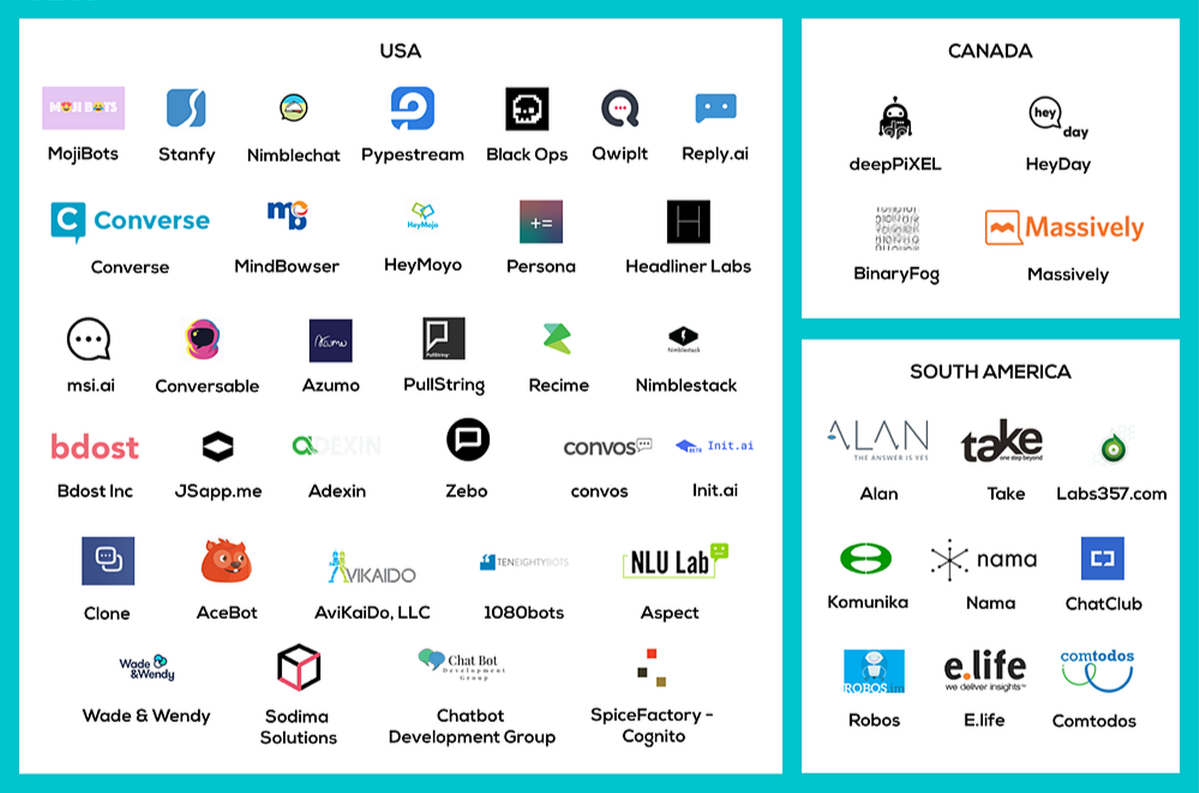
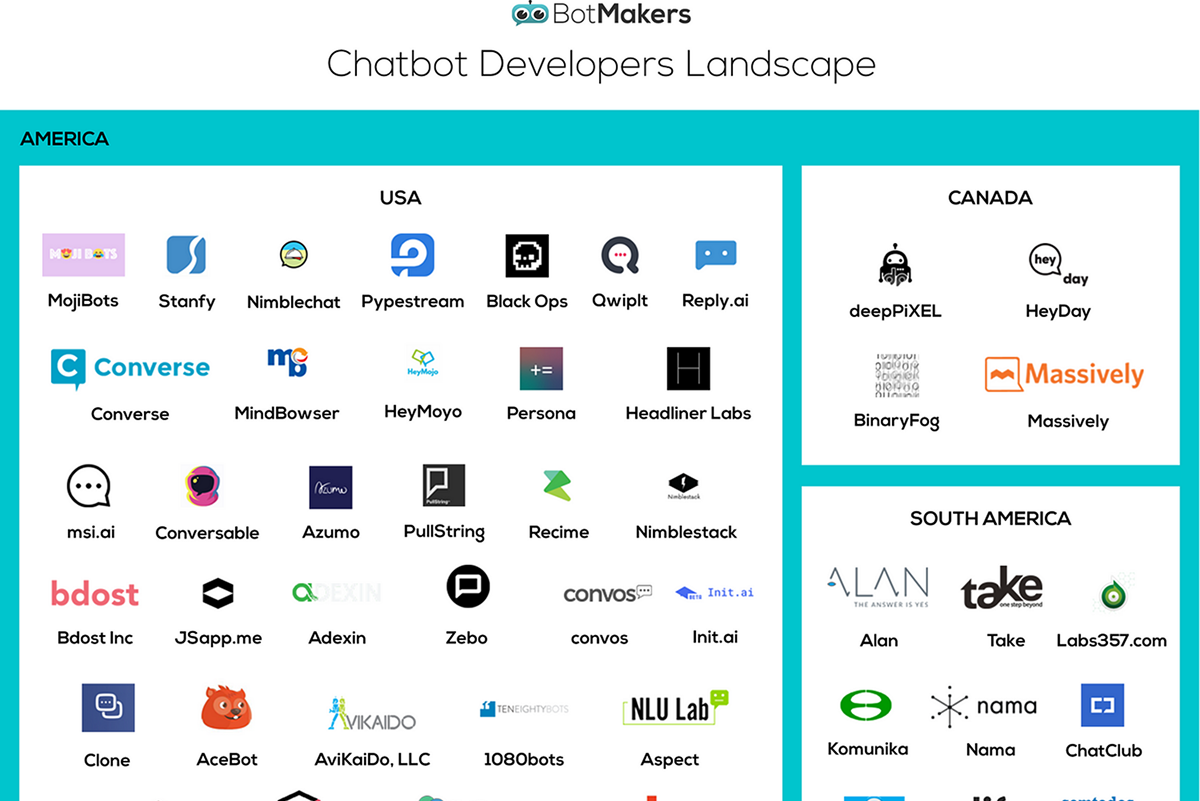
Please, find the newest Chatbot Developers Landscape below. We collected companies from all over the world and grouped them by continents and countries.
Explore the list of Facebook Messenger chatbot templates to learn more about how different businesses use chatbots for lead generation, engagement and customer service.
Are you considering building a Facebook Messenger chatbot but unsure about the costs involved? Based on our extensive experience from January 2017 to October 2018, during which we and our partners developed over 800 Facebook Messenger chatbots, we’ve compiled a comprehensive guide to help you understand the pricing landscape. Whether you’re a small business or a large enterprise, knowing the typical costs associated with chatbot development will enable you to budget effectively and choose the right solution for your needs.
Cost Breakdown for Facebook Messenger Chatbot Development
Understanding the various pricing tiers for chatbot development can help you make informed decisions. Here’s how much chatbot development agencies on Botmakers.net marketplace typically charge for designing, developing, testing, and training Facebook Messenger bots:
$1,500–$2,000. Simple Chatbots Without Coding
Built using platforms like Chatfuel or ManyChat.
Often utilize prebuilt templates.
May include API integration for generating AI images.
Example:ResumeCopilot is an AI-powered resume assistant that helps job seekers craft effective resumes by providing personalized guidance and actionable feedback.
$2,000–$3,000. Chatbots with Zapier Integrations
ManyChat chatbots integrated with Zapier.
Includes integrations with tools like Google Calendar, Google Drive, Google Forms, and Google Sheets.
Adds complexity without requiring custom coding.
$3,000–$6,000. Chatbots with Custom Back-End
ManyChat chatbots with some custom coding.
Development typically completed in less than 1–2 weeks.
Enhanced functionality tailored to specific business needs.
$6,000–$10,000. Chatbots with Complex Back-End Integrations
Integrated with existing systems and databases.
Usually developed by a team of 2–3 people.
Includes advanced features such as user authentication and data synchronization.
$10,000–$15,000. Advanced Chatbots with Third-Party Integrations
Connected to CRMs and sales tools like Microsoft Dynamics CRM, ClickFunnels, HubSpot, MailChimp, Marketo, Infusionsoft.
Integrated with eCommerce platforms like Squarespace, WooCommerce, Magento, BigCommerce, Unbounce, Mailgun.
Offers seamless data flow between various business tools.
$15,000–$40,000. AI Customer Support and Service Chatbots
Automate 20–50 frequently asked questions (FAQs).
Used with sales and customer service tools like Intercom, Olark, Zendesk, Help Scout.
Provides intelligent responses and improves customer service efficiency.
$40,000–$100,000. Enterprise-Level AI Chatbots
Designed for small and mid-size enterprises.
Require a team of 4–6 members.
Development takes at least 2–3 months.
Chatbots are part of a larger system with custom dashboards, web views, and more.
Offers comprehensive solutions tailored to complex business requirements.
Too Expensive? Use Bot Templates
If creating a chatbot from scratch seems too costly or time-consuming, consider using pre-built Messenger bot templates available on the Botmakers.net marketplace. Here’s why bot templates might be the perfect solution for you:
Launch a Fully Featured Bot in Just a Few Hours: Quickly get your chatbot up and running without the need for extensive development time.
No Coding Required: Customize your chatbot effortlessly without needing to hire developers.
1,000+ Integrations Available with Zapier: Seamlessly connect your bot to a wide range of AI applications and services.
Developer Assistance Available: If you need additional customization, you can request help from the developer who provided the template for an extra fee.
Developer’s License: Ideal if you plan to resell bots created from a template, expanding your business opportunities.